

Using Email Templates (BYO or Customize Ours)
Save the replies you send on every booking as email templates so party details fill in automatically, then send them from the Booking & Inquiry Hub in a couple of clicks.
Where templates live
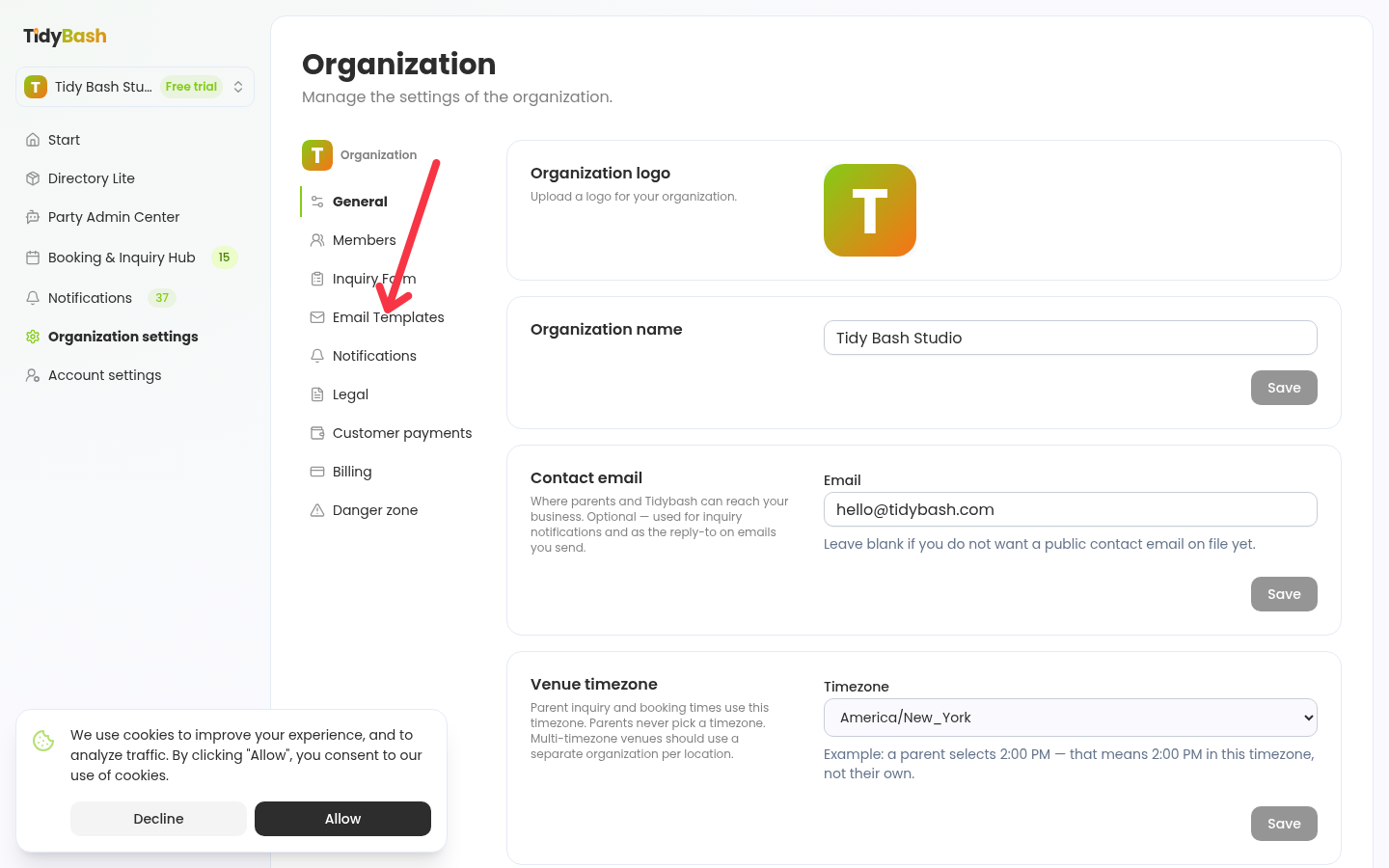
You manage email templates under Organization settings > Email Templates. Each template card shows the name, subject, an Active or Inactive badge, and a preview of the body.
Click Organization settings in the left sidebar.
Click Email Templates in the settings sidebar.
The four starter templates
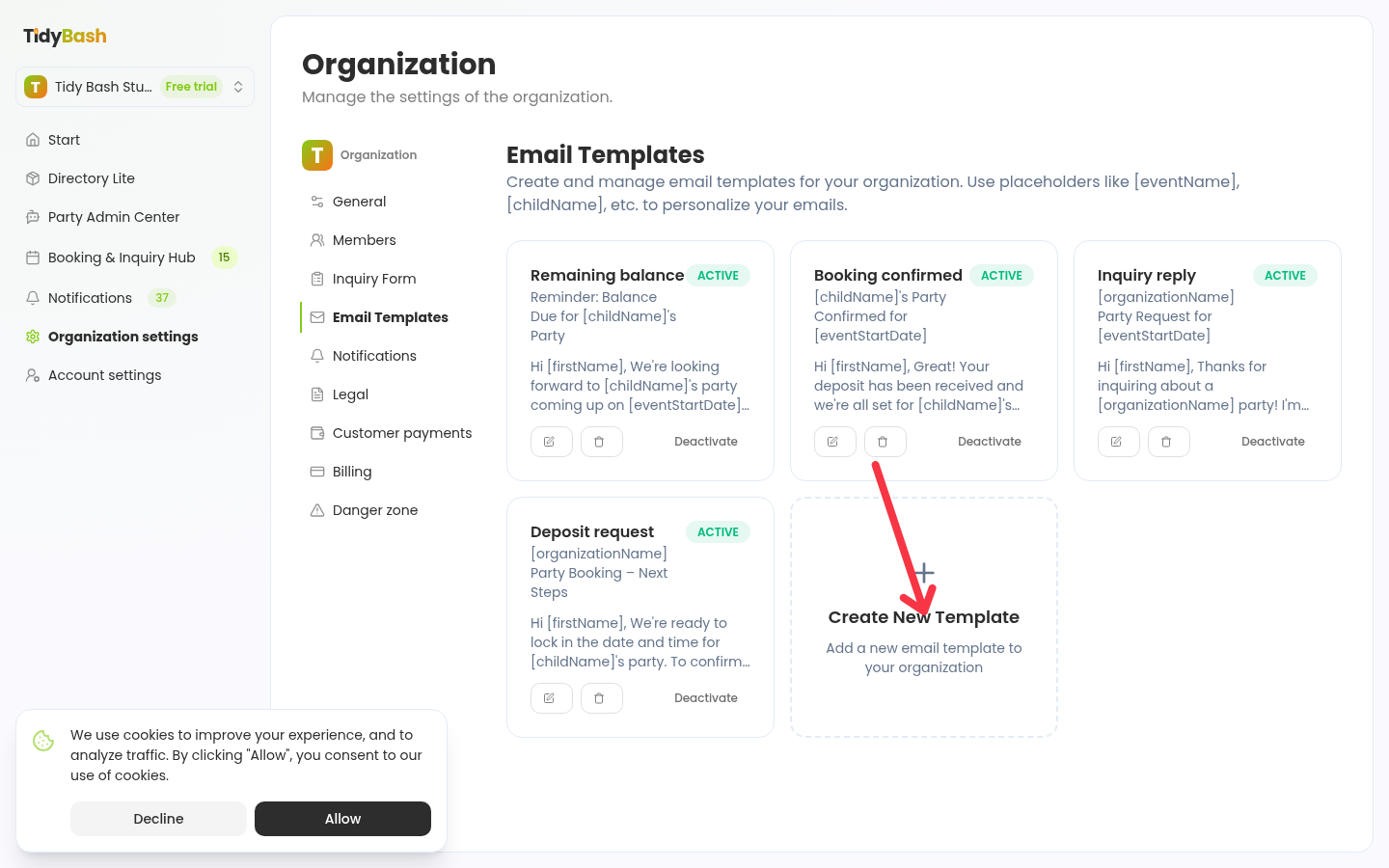
Every account created since 11/10/26 comes with four starter templates that cover the standard booking conversation from first reply to final payment:
Inquiry reply. Tells the parent you're available, restates the date, time, location and headcount, and asks if they have questions before you lock in the date.
Deposit request. Sends the payment link for the non-refundable deposit and recaps the party details.
Booking confirmed. Confirms the deposit came through and shares the party page, where parents invite guests, collect RSVPs and get waivers signed.
Remaining balance. A reminder the week of the party with the payment link for the balance.
Don't see them? Older accounts were created before the starters existed. Reach out to Tidybash and we'll add them to your account.
Two more worth adding: a thank-you email that asks for a review, and a birthday email you send about 8 weeks before a child's next birthday. You can copy both from our party booking email templates.
Create or edit a template
Open Organization settings > Email Templates, then:
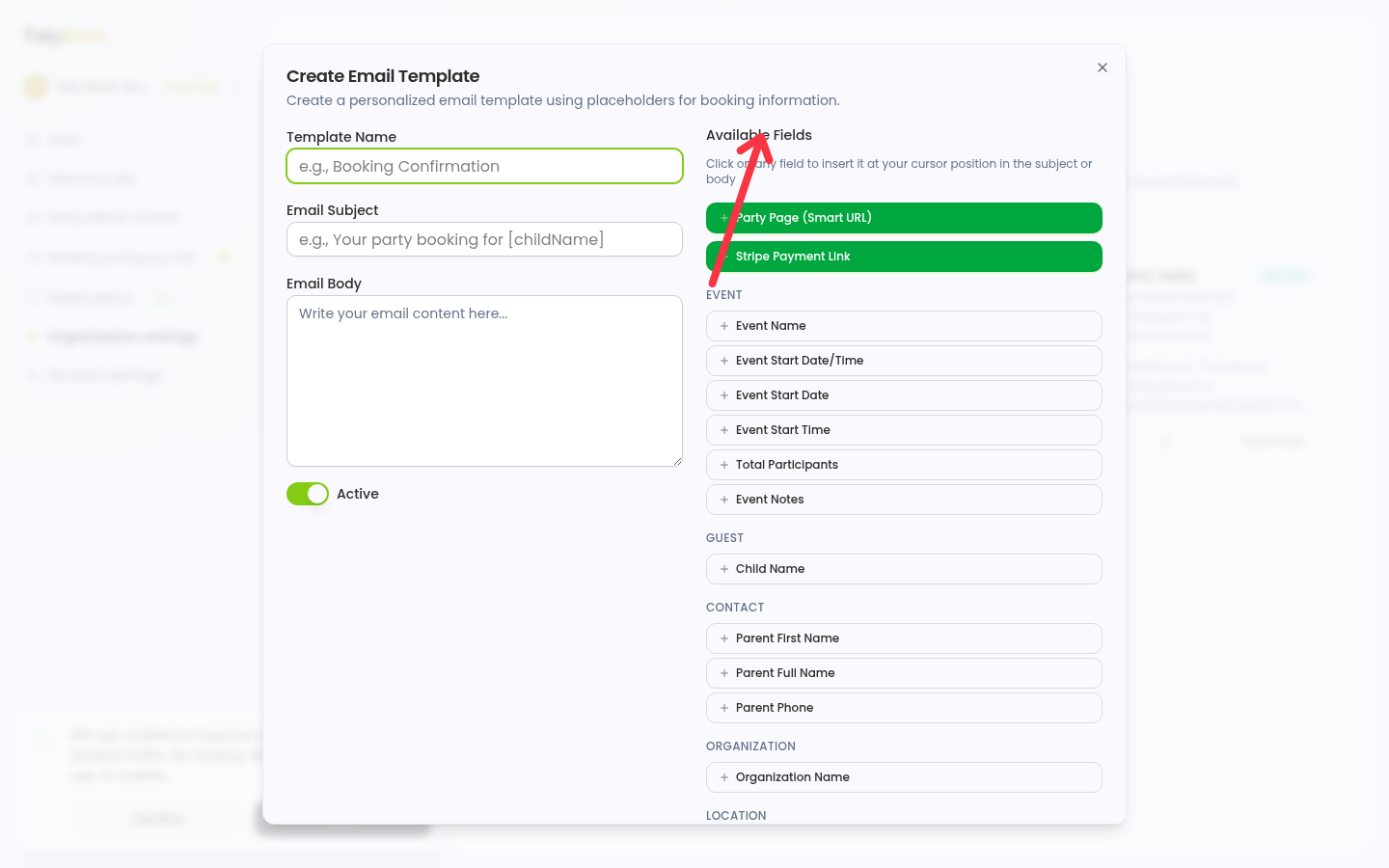
Click Create New Template, or click the edit icon on an existing template card. With no templates saved yet, the button reads Create Your First Template.
Enter a Template Name, an Email Subject, and the Email Body.
To personalize the message, click a field in Available Fields. It drops in at your cursor position in the subject or body.
Leave the Active switch on so the template shows up in the Hub.
Click Create Template (or Update Template when editing).
Only Active templates appear in the Hub's template dropdown. Inactive ones stay saved, so you can switch one off while you rework it without deleting anything.
Which details fill in automatically
Placeholders fill in from the booking when you send, so one template works for every party. Available Fields groups them by category: Event, Guest, Contact, Organization, and Location. Two link buttons sit above the categories: Party Page (Smart URL) and Stripe Payment Link.
Some of the fields you'll use most:
Event: Event Name, Event Start Date/Time, Total Participants, Event Notes
Guest: Child Name
Contact: Parent First Name, Parent Full Name, Parent Phone
Organization: Organization Name
Location: Location Name, Location Address
Pick fields from Available Fields rather than typing the bracketed tokens yourself, so the spelling always matches what the editor expects.
The Stripe Payment Link placeholder
The Stripe Payment Link placeholder only works when two things are true: Stripe is connected, and a payment link has been created on that booking. If the booking has no payment link yet, Tidybash blocks the send and asks you to create one in the payment section first.
Create the link from the booking's payment card before you send. The full walkthrough is in Getting Paid: Deposits, Balances, and Refunds.
Send a template from the Hub
Templates are sent by hand from the Booking & Inquiry Hub. Nothing sends automatically: you choose the booking and the moment.
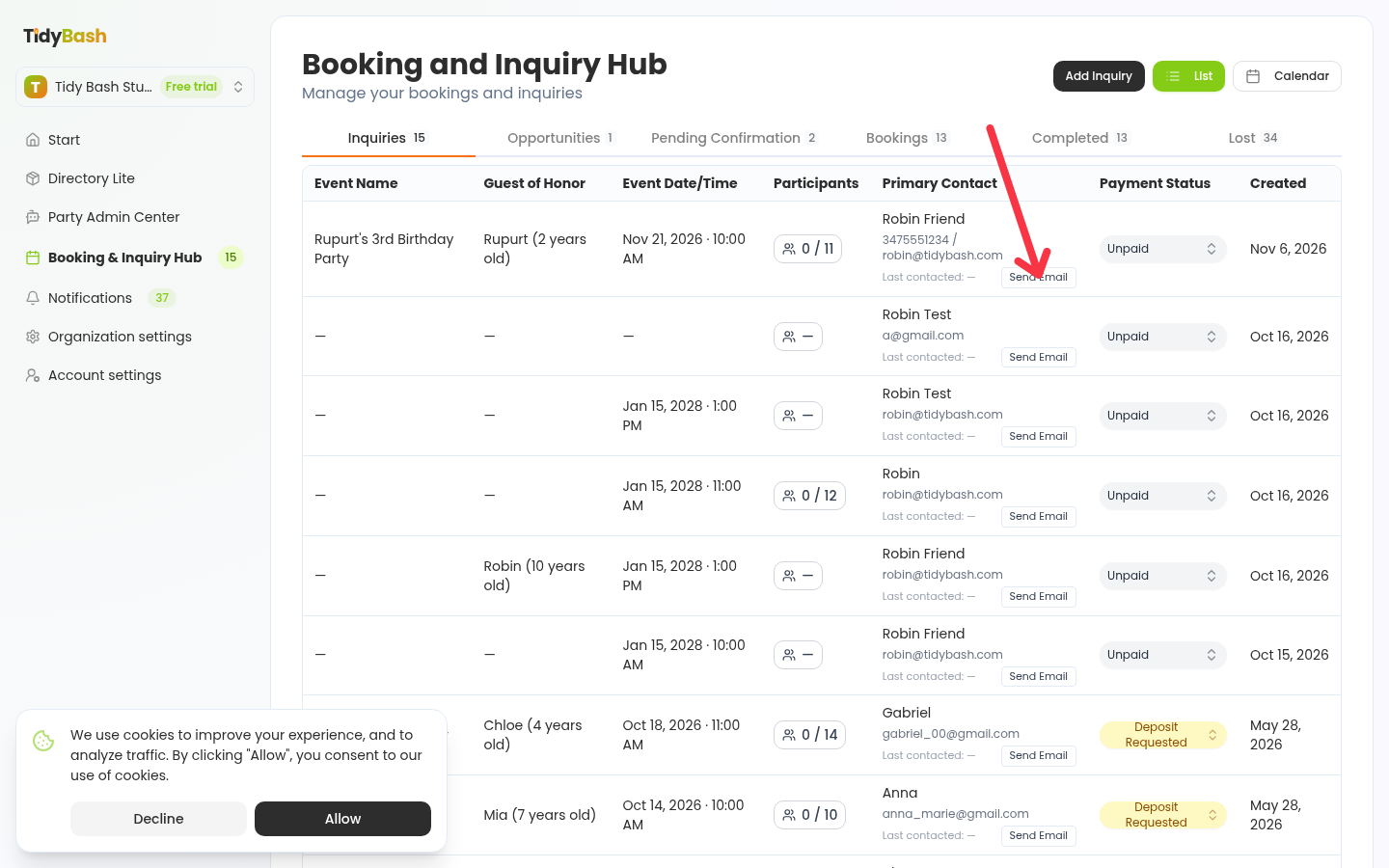
Open Booking & Inquiry Hub from the left sidebar.
On the inquiry row, click Send Email.
In the Send Email modal, open the Email Template dropdown and choose a template. Only active templates are listed.
Tidybash fills Subject and Message from the booking. Edit either one before sending if you need to tweak it for this party.
Check the Preview on the right to see the finished subject and body with the details filled in.
Click Send Email.
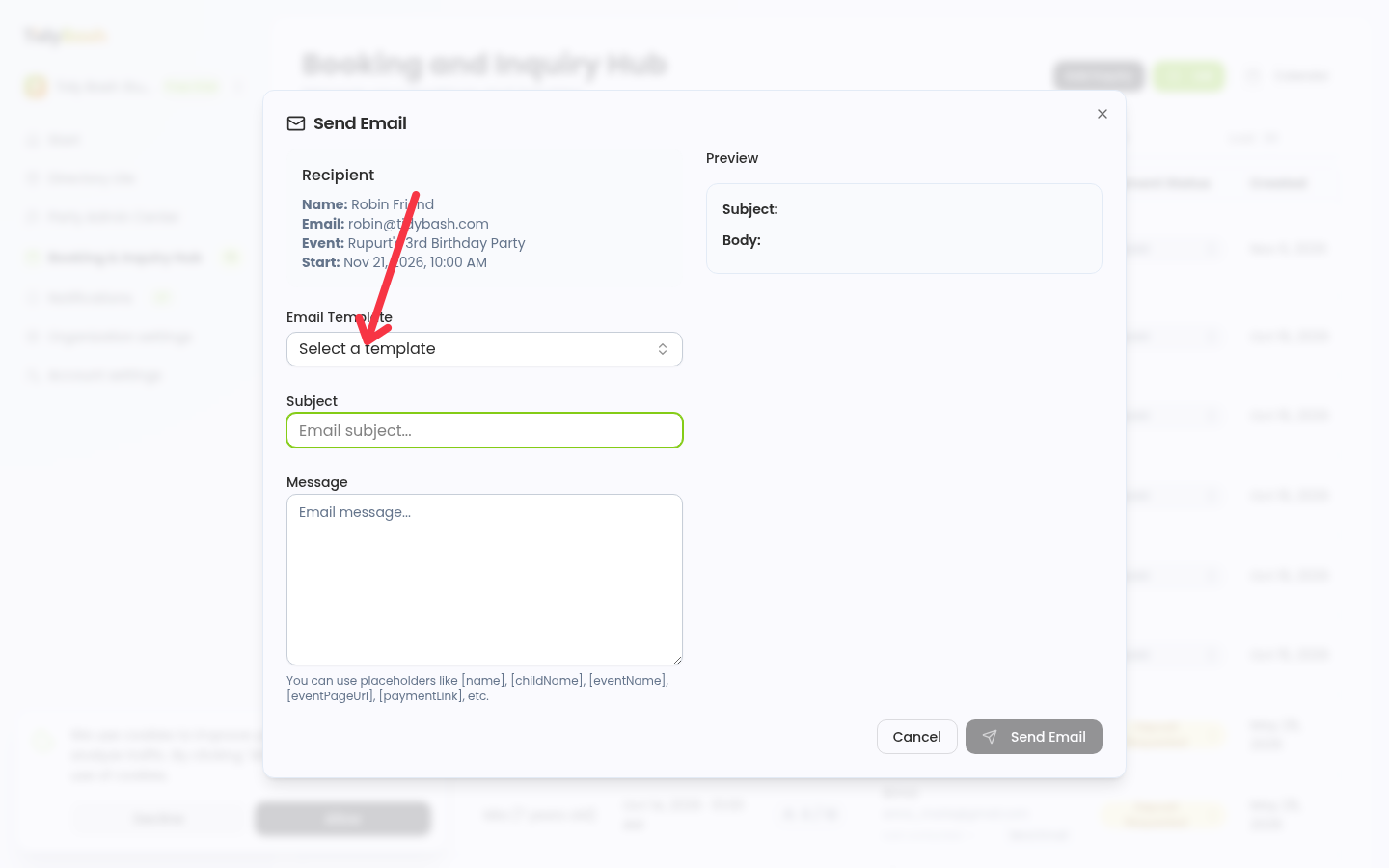
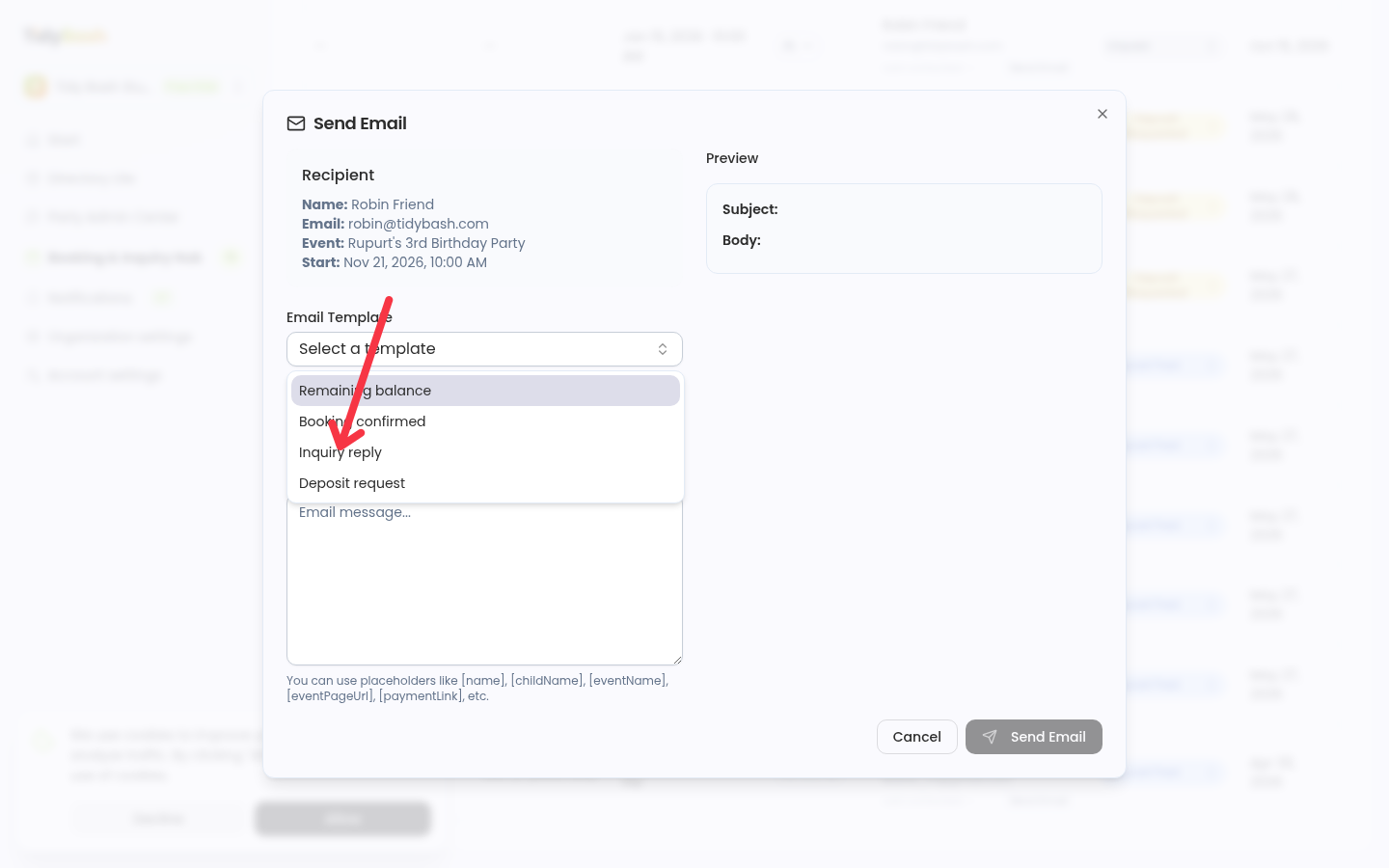
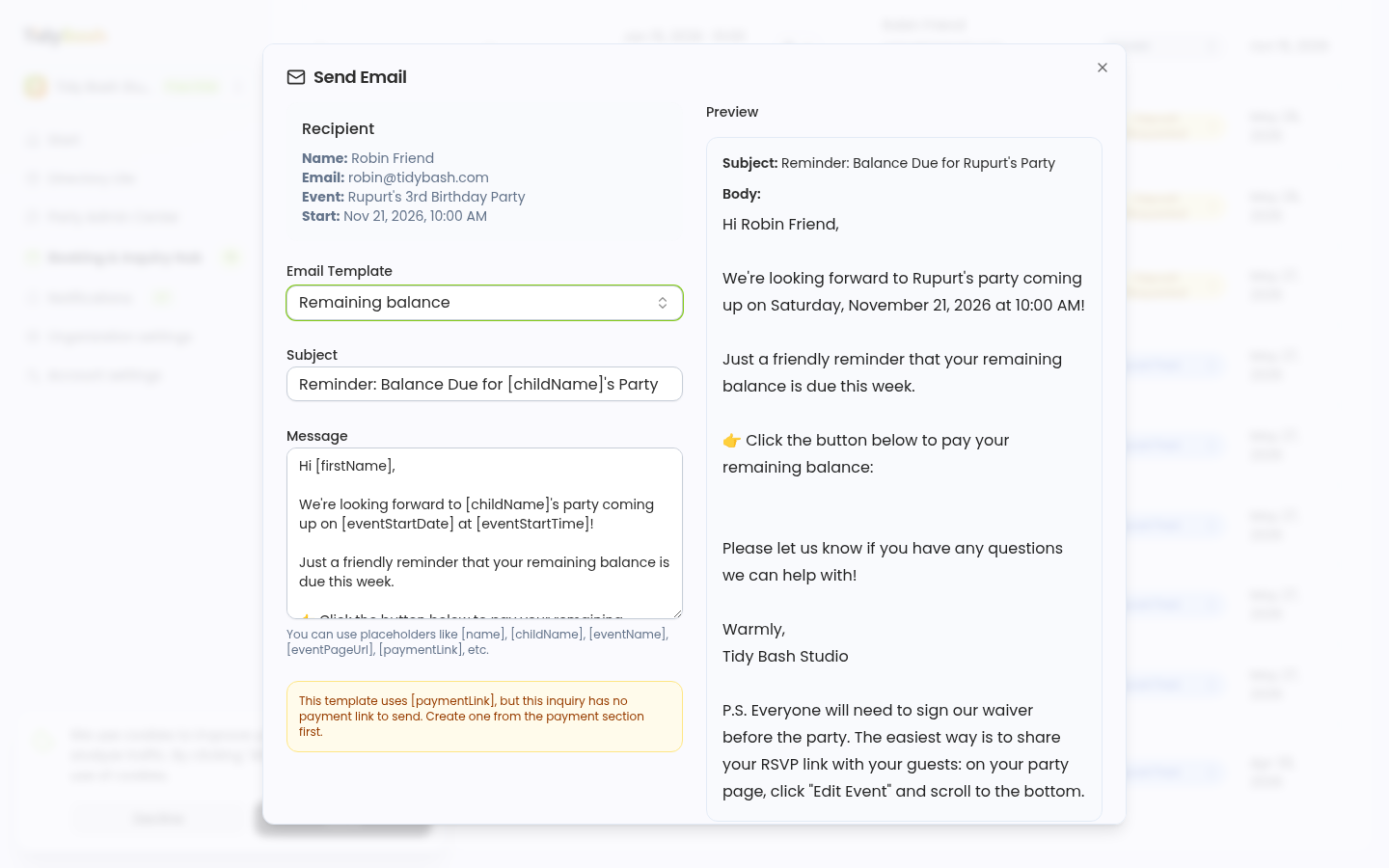
The modal also shows the recipient's name, email, event, and start time at the top, so you can confirm you're writing to the right party before you send.
Who parents see as the sender
Emails you send from the Hub, from a template or written from scratch, show your business name followed by "via Tidybash" as the sender. When a parent hits reply, their reply goes to your organization's Contact email. If no Contact email is set, parent replies won't reach you.
This applies only to emails you send from the Hub. Guest invites, which parents send from their party page, don't use your business name or reply-to.
Set or check your Contact email under Organization settings > General. The full steps are in Setting Your Contact Email.