

The Event Page: What Parents and Guests See
Every booking gets its own shareable event page. You send it to the booking parent and their guests so party details, RSVPs, and headcount live in one place instead of scattered across texts and email threads.
As the provider, open any booking in the Booking and Inquiry Hub and use View as Parent in the inquiry detail view to preview the page the way the booking parent does.
Two views: guests vs. the booking parent
Guests and the booking parent do not see the same page. Guests get the public event page. The booking parent gets an edit link with package and pricing details guests never see.
What guests see (the public page)
The public event page is what you share for details and RSVPs. It does not show package or add-on selections, or any pricing.
When those details exist on the booking, guests see:
Event name and date
Your business name under Hosted by
Hero image (if you uploaded one)
Event description
Location address with a map (when the address is available)
A live weather forecast for the event date and location (when the address is complete enough)
Guest list and RSVP controls
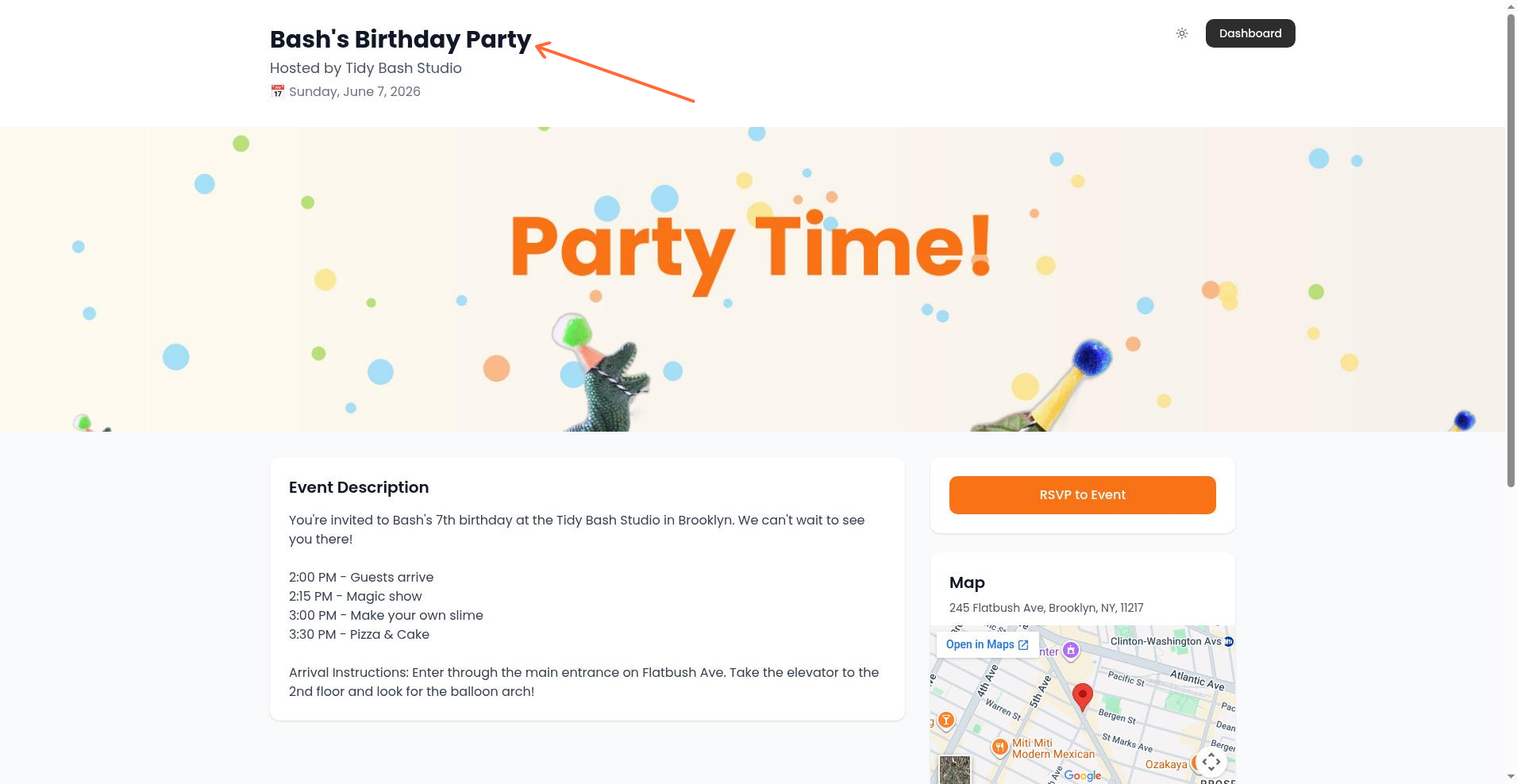
Guests who open a shared event or RSVP link see an RSVP to Event button. Guests you invite in the app can mark Going or Can't go from their invite. Guests sign the waiver as part of RSVP when a waiver is assigned.
Package name, add-ons, and pricing do not appear on the public page. Only the booking parent sees those on their edit link.
What the booking parent sees (their edit link)
The parent who booked gets an edit link that unlocks more than the public page. After they enter their edit code, they work in two tabs:
Event Details: customize the public description, preview the event page, and copy the guest RSVP link
Package & Add-ons: review and change the chosen package and add-ons, with a live Price Breakdown
They can update package and add-on selections there and click Save Changes. Those updates write back to the booking in your hub.
From this edit view they can also open View Event Page to see the public page, or use Copy Link in the RSVP Link section to share the guest RSVP URL with people who have not been invited yet.
Customizing the page
You control how the public page looks from the booking's inquiry modal in the hub.
Hero image
Upload a custom hero image under Hero Image with Upload Hero Image. The image shows under the event name and hosted-by section on the public event page. The uploader accepts image files.
Template
Under Party Page Template, choose how the party page looks to guests:
Default - Clean and Professional
Childish - Fun and Colorful
The template controls colors, fonts, and overall styling of the public event page.
Sharing the page
From the booking's inquiry modal in the hub, use the action row:
View Party Page: opens the public page in a new tab so you can check what guests see
View as Parent: opens the booking parent's edit view (the two-tab experience with their edit code already loaded) so you can walk through exactly what they see
Copy RSVP Link: copies the guest RSVP URL (
/event/…/rsvp) to your clipboard
Share the public event page or RSVP link with guests. Guests RSVP and sign waivers from that flow. For more on waivers at RSVP time, see Setting Up Waivers.
There is no separate copy-event-page-link control in the inquiry detail view. Open View Event Page when you need the public page URL, or use Copy RSVP Link when you only need the RSVP path.
Related articles
Setting Up Waivers: attach a waiver so guests sign during RSVP
Using the Booking and Inquiry Hub: open bookings and manage the pipeline where these controls live
Setting Up Locations: set addresses so the event page can show a map and weather
Guest Management Tips for Your First Tidybash Party: first-party playbook for invites, day-of check-in, and guest list export