

Creating Add-ons
Build add-ons in Party Admin Center → Add-ons so parents can add extras like food, extra time, or decorations when they book. Create the add-on first, then attach it to a package so it shows up for that package only.
Use a flat-price add-on when the parent simply adds an extra or skips it, variations when they pick an option like themes or cupcake flavors, and separate add-ons when the same add-on costs different amounts on different packages.
Not sure which add-ons to offer? Our guide to pricing party packages covers the popular ones and how to keep your list short enough to choose from.
Create a basic add-on
Start on the Add-ons tab and open the create form with a name, base price, and optional description.
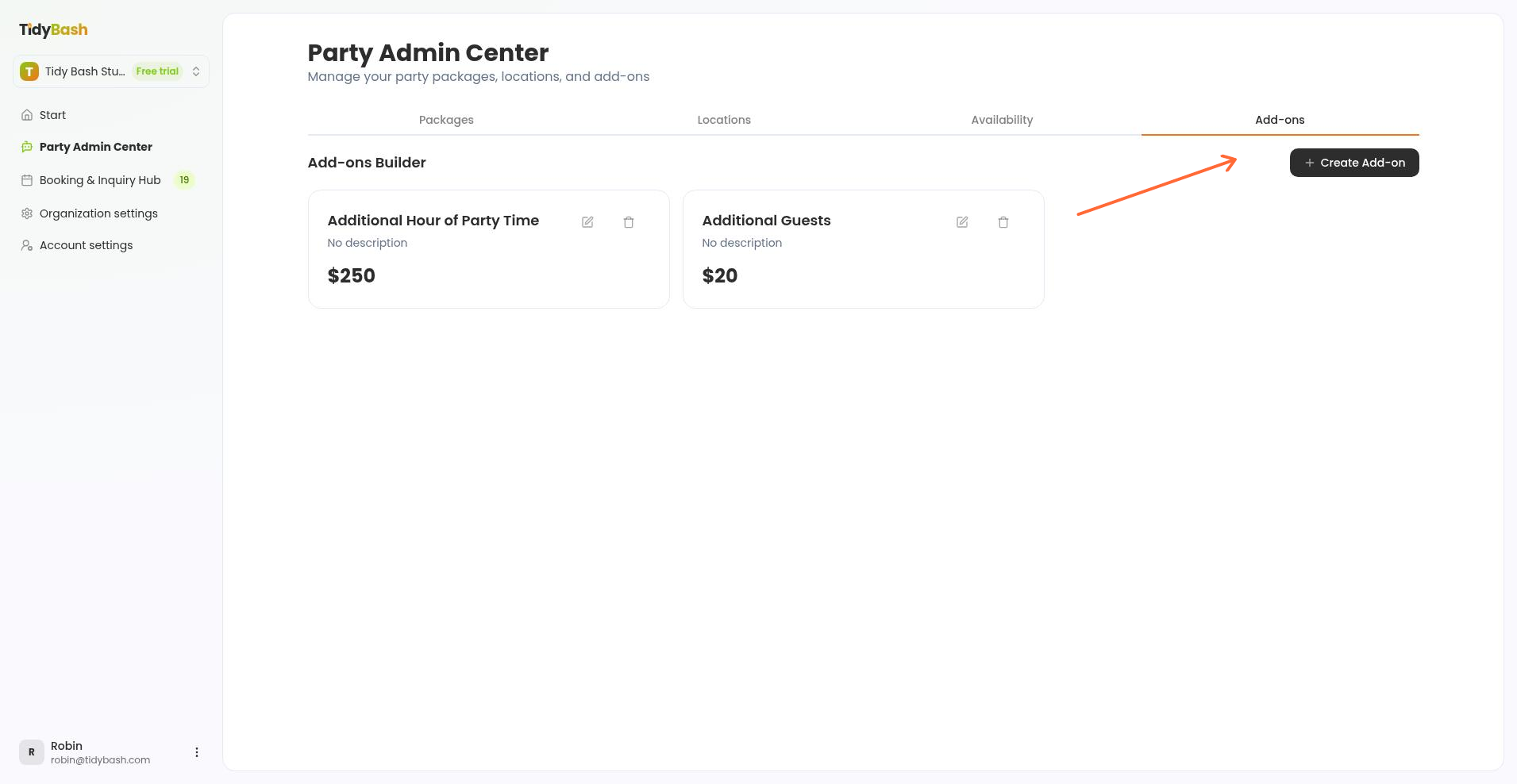
Go to Party Admin Center.
Open the Add-ons tab.
Click Create Add-on.
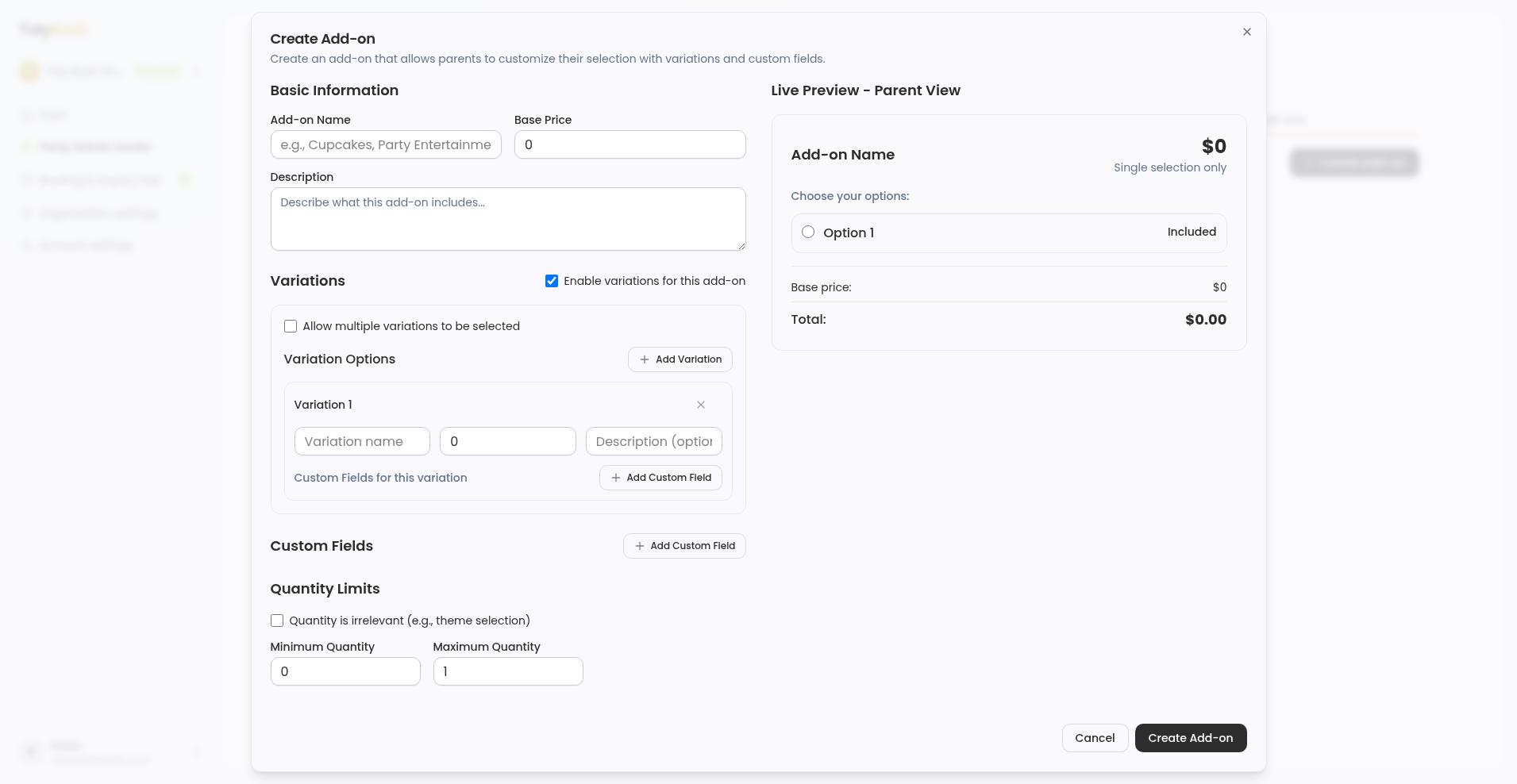
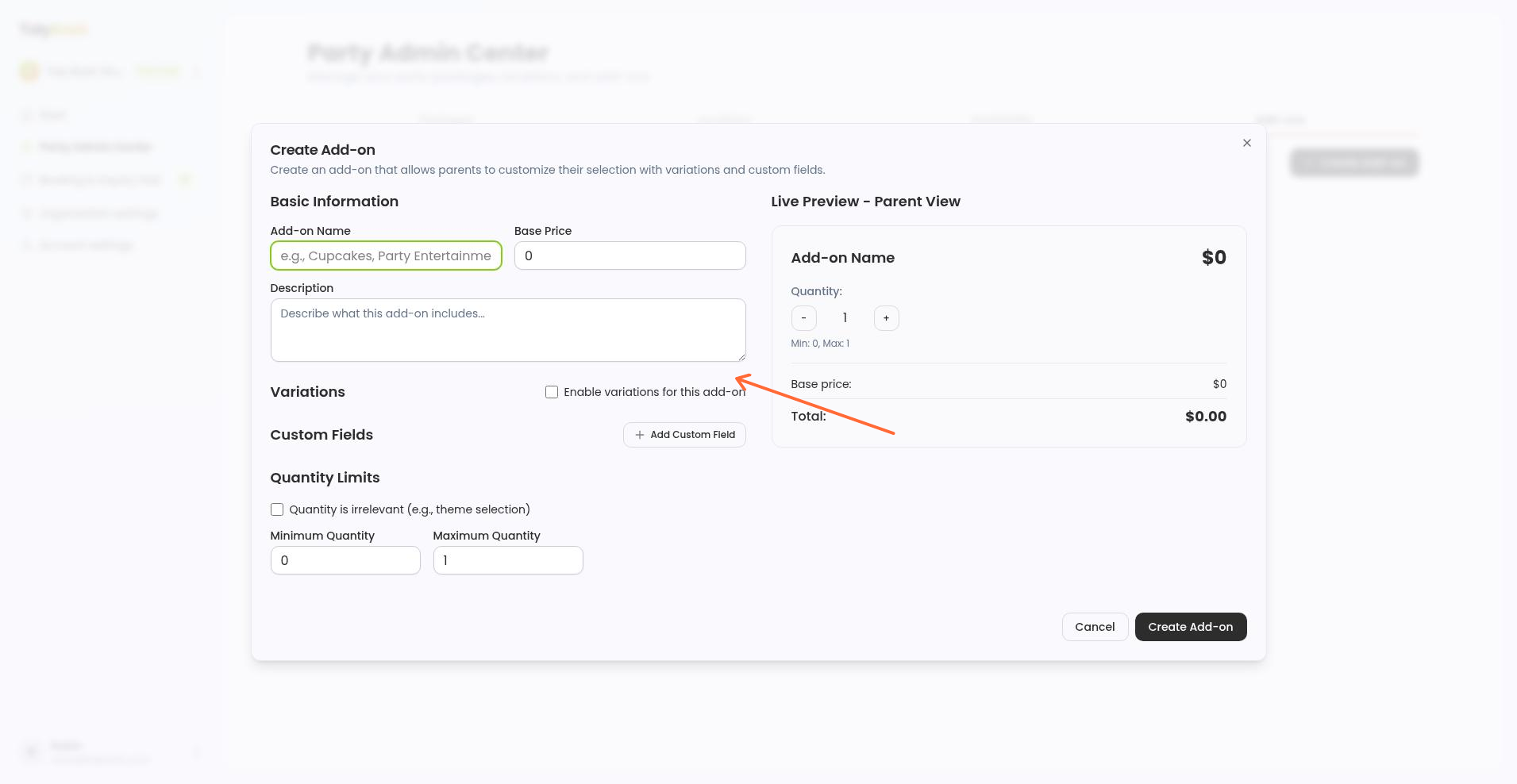
Fill in the basics under Basic Information.
Enter the required Add-on Name (for example, Extra 30 Minutes).
Enter the Base Price parents will pay for this add-on.
Optionally add a Description parents will see when booking.
Check Live Preview - Parent View on the right as you type so you can see how the add-on will look to parents, including base price and total.
Click Create Add-on to save.
Link the add-on to a package
An add-on only appears for parents when you attach it to a package under Available Add-ons.
Go to Party Admin Center → Packages.
Edit an existing package, or create a new one.
In Available Add-ons, select the add-ons parents can choose for that package.
Save the package.
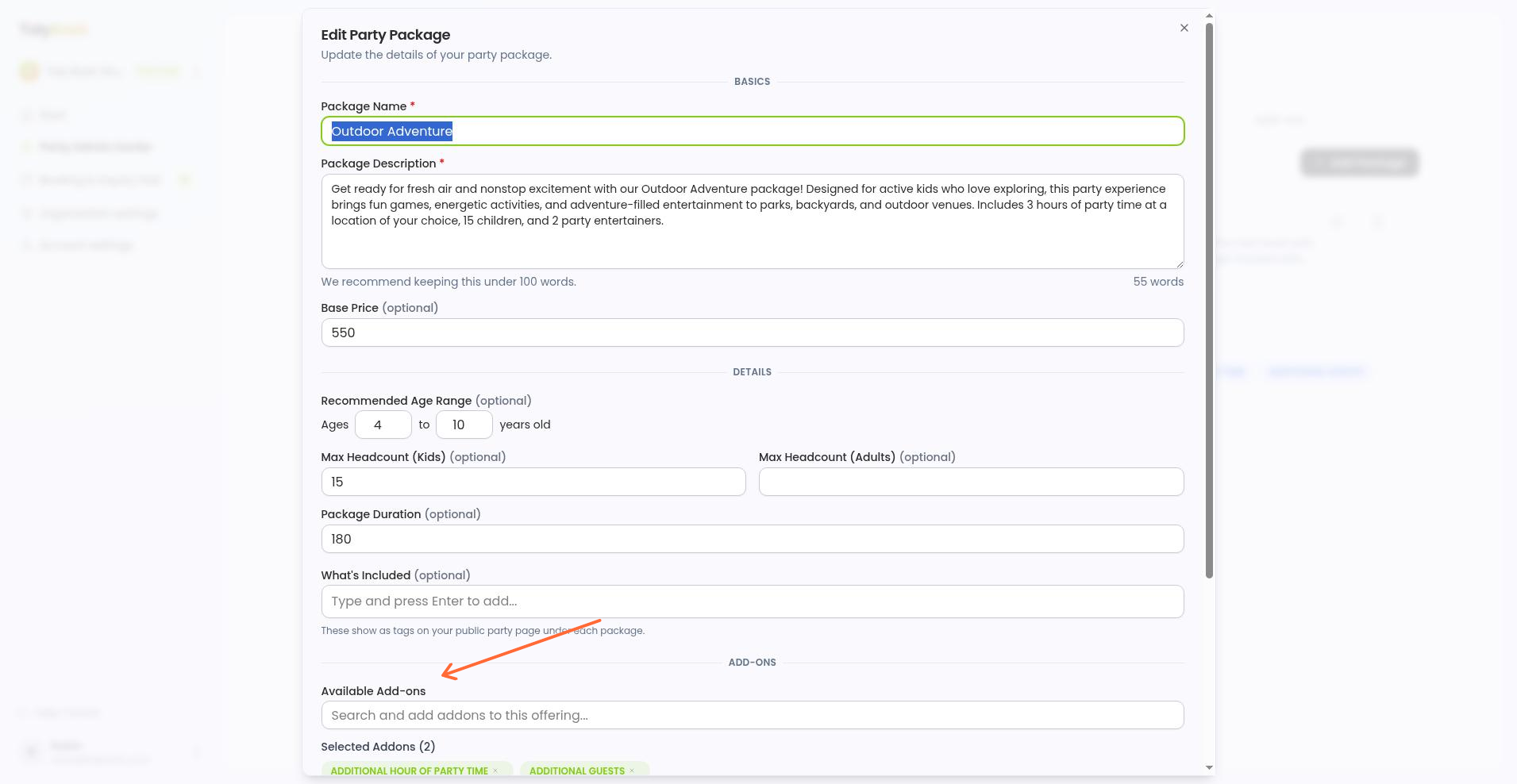
The package form helper text is: attach add-ons you've created in the Add-ons tab so parents can select them when inquiring. Price lives on the add-on itself, not in this field. You're only choosing which extras that package offers.
For package setup details, see Creating Party Packages.
Add options with variations
Turn on variations when the parent needs to pick an option, such as cupcake flavor, and optionally allow more than one choice.
Example: a Cupcakes add-on with chocolate, vanilla, or mixed.
Create the add-on and set Add-on Name (Cupcakes) and a Base Price if the add-on has a shared starting price.
Check Enable variations for this add-on.
Check Allow multiple variations to be selected only if the parent should pick more than one option (for example, chocolate and vanilla). Leave it off for a single choice.
Click Add Variation for each option.
For each variation, enter Variation name (Chocolate, Vanilla, Mixed), a Price modifier that adjusts the total from the base price, and an optional Description (optional).
Under Custom Fields for this variation, add fields if that option needs extra parent input (for example, a message on the cake).
Watch Live Preview - Parent View: it shows whether multiple selections are allowed or single selection only, and updates base price and total as you change variations.
Click Create Add-on, then link it on the packages that should offer cupcakes.
Variation custom field types include Text, Text Area, Number, Select, Checkbox, Radio, Date, and Time. For Select or Radio options, enter one option per line.
Charge different prices on different packages
When the same extra costs different amounts on different packages, create two add-ons and link each to its own package. The price lives on the add-on, not on the package link.
Example: extra kids are $25 on one package and $35 on another.
Create an add-on such as Extra Kid - Standard with Base Price 25.
Create a second add-on such as Extra Kid - Premium with Base Price 35.
On the first package, add only Extra Kid - Standard under Available Add-ons.
On the second package, add only Extra Kid - Premium under Available Add-ons.
Parents only see the add-on attached to the package they chose, so each package can show its own price for the same kind of extra. Package setup steps are covered in Creating Party Packages.
Set quantity limits
Use Quantity Limits when parents should choose how many of an add-on they want, or mark it irrelevant when a count doesn't apply.
In the create or edit form, open Quantity Limits.
Set a Minimum Quantity and a Maximum Quantity for how many a parent can add (for example, at least 2 and up to 12 cupcake packs).
Check Quantity is irrelevant (e.g., theme selection) when the add-on is a choice, not a count. That turns off the quantity inputs.
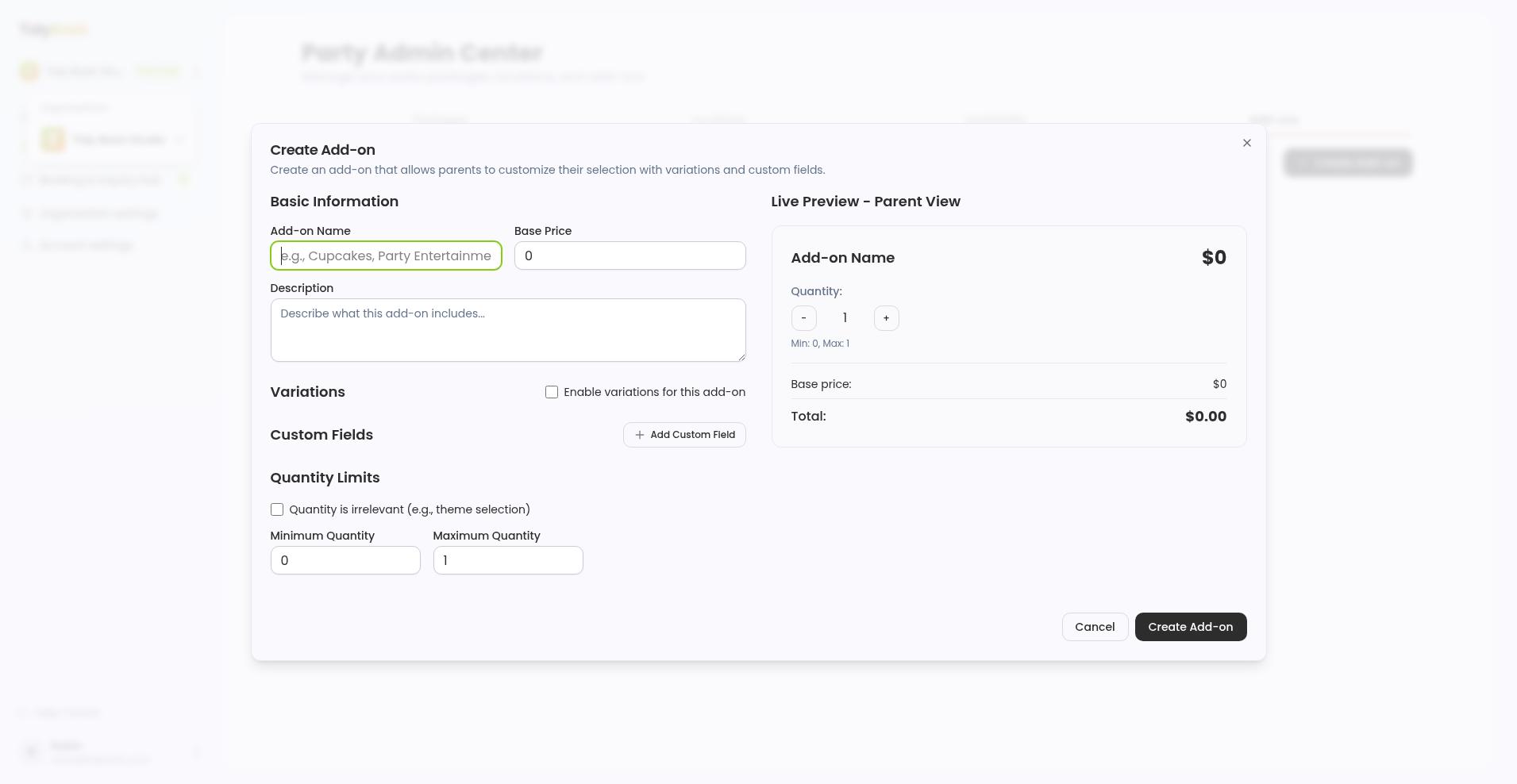
The Live Preview - Parent View shows the quantity selector as parents will see it.
Collect extra details with custom fields
Add custom fields when you need information from the parent beyond the add-on choice itself, for example a name to put on a cake.
In the create form, go to Custom Fields.
Click Add Custom Field.
Enter the Field name and choose the field type.
Check Required field if the parent must fill it in before booking.
You can also add Custom Fields for this variation when only one option needs the extra question. The live preview shows Additional Information: for those fields as parents would see them.