

Guests, RSVPs, and Waiver Signing
Once a parent has their event page, they invite guests by email or with a shareable RSVP link. Guests RSVP and sign the waiver in one flow, and you watch headcount update in the Booking and Inquiry Hub.
How the booking parent invites guests
With edit access on the event page, the parent can invite by email or share one RSVP link anyone can open. From the Hub, you can open the same party tools from the inquiry modal.
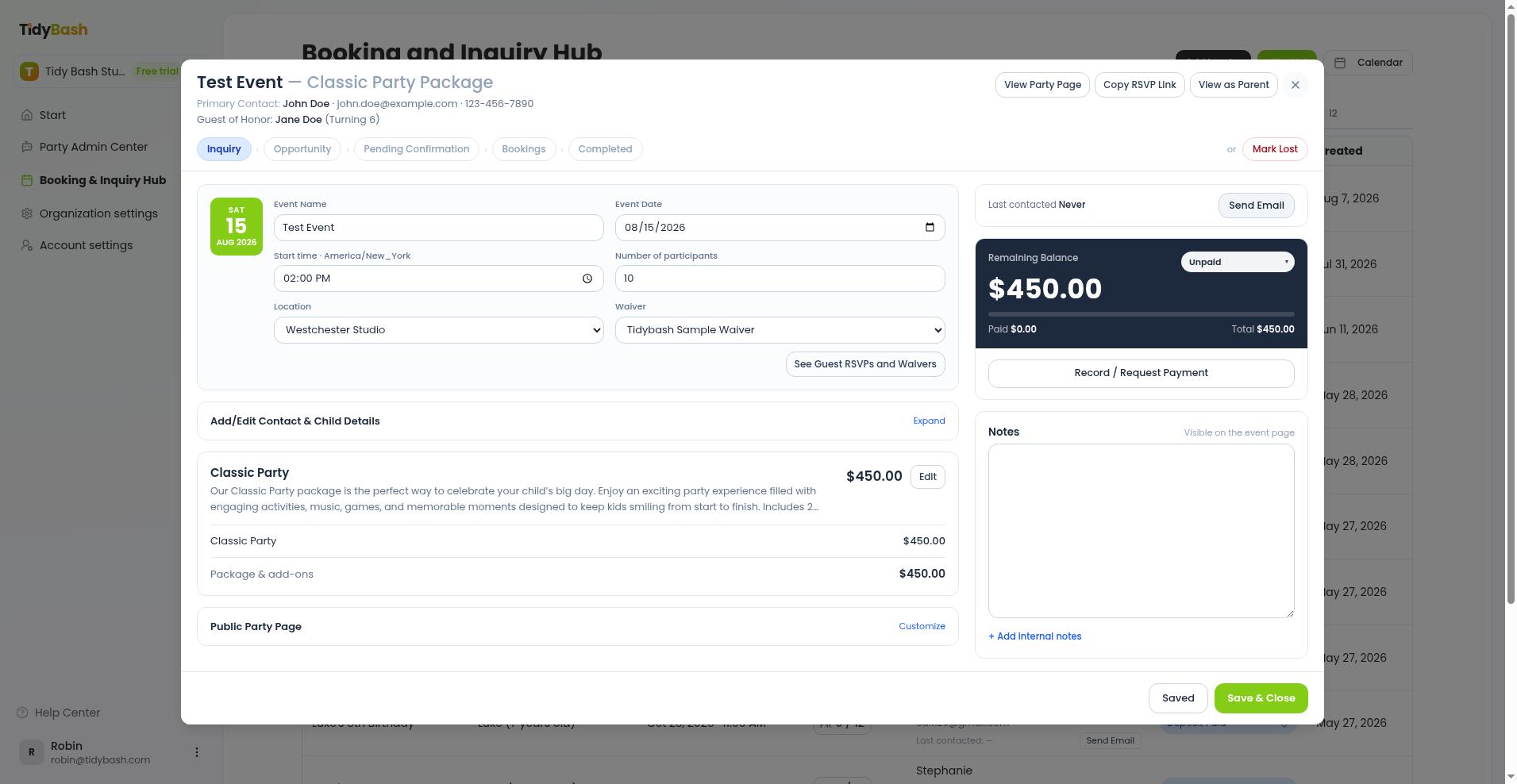
On a Bookings row, open the party to load the inquiry modal. Use:
View Party Page for the public event page
Copy RSVP Link for the public RSVP URL you can hand to a walk-in or share yourself
View as Parent to open the event page with the parent's edit access
How guests RSVP and sign the waiver
Guests open the invite or RSVP link, enter their details and kids, and sign the waiver in the same flow when one is attached. No paper at the door.
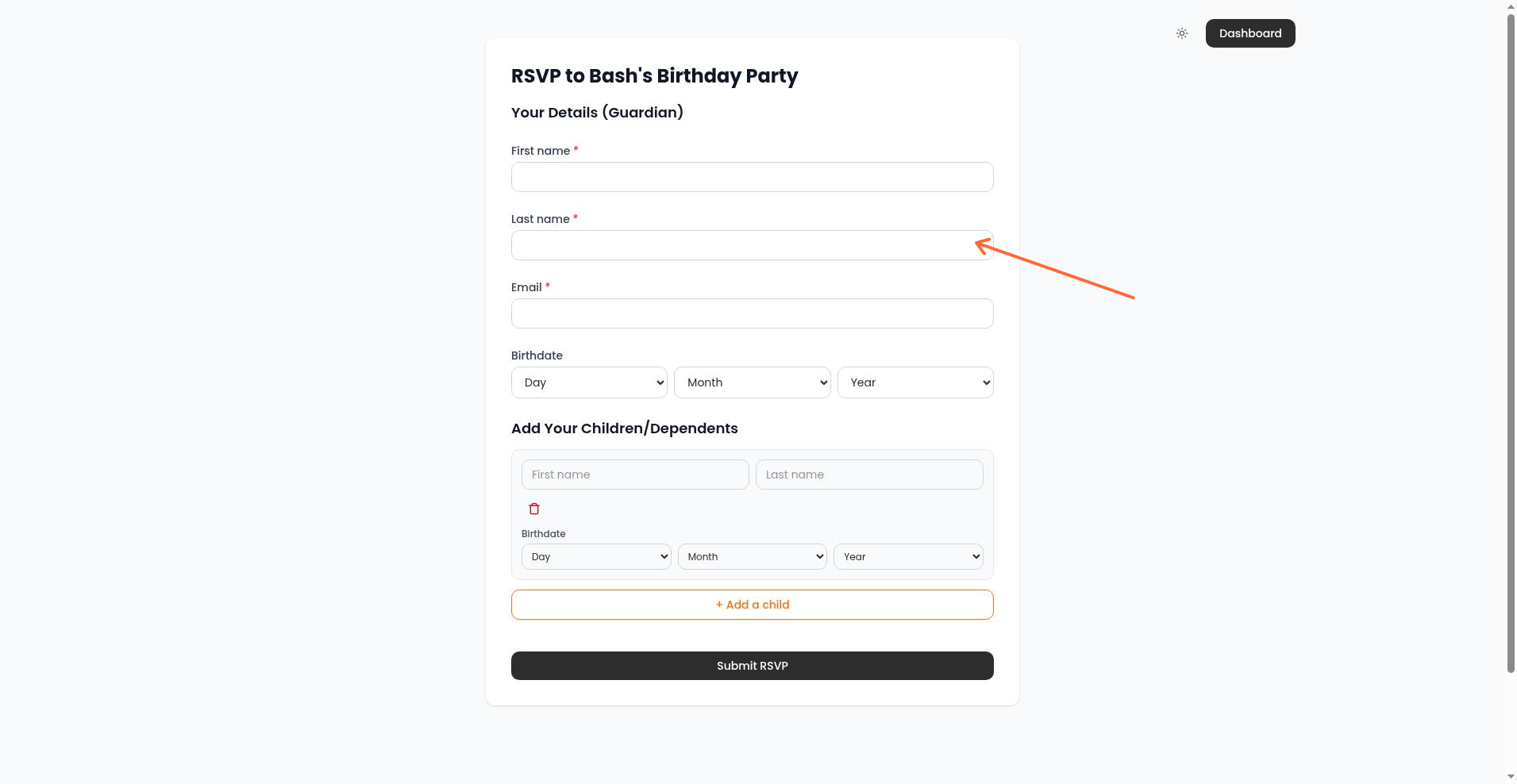
Open the invitation email, the shareable RSVP link, or RSVP to Event on the public event page.
Under Your Details (Guardian), enter First name, Last name, Email, and optional Birthdate.
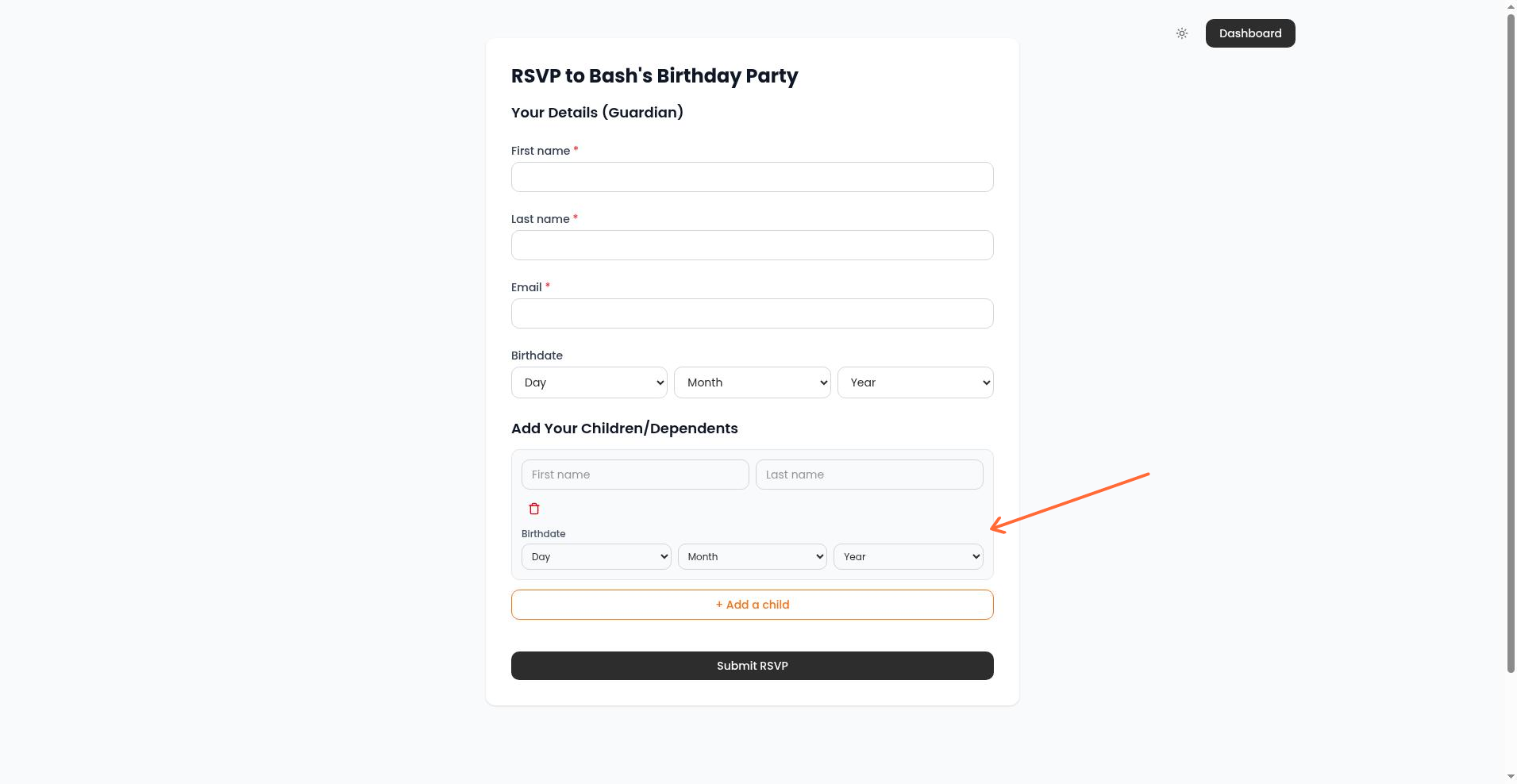
Under Add Your Children/Dependents, add each child who is participating. Use + Add a child for more kids.
Click Submit RSVP. If the party has a waiver, the button may show Continue, then the waiver opens for signing.
Complete the waiver fields and click Sign Document.
After a successful signature, the guest sees confirmation that the waiver was signed. If no waiver is attached, RSVP submit finishes without the signing step.
Attach the right waiver on the inquiry before guests RSVP. See Setting Up Waivers for upload, field placement, and assignment.
What you see in the Hub
Headcount and waiver status update in the Booking and Inquiry Hub as guests respond.
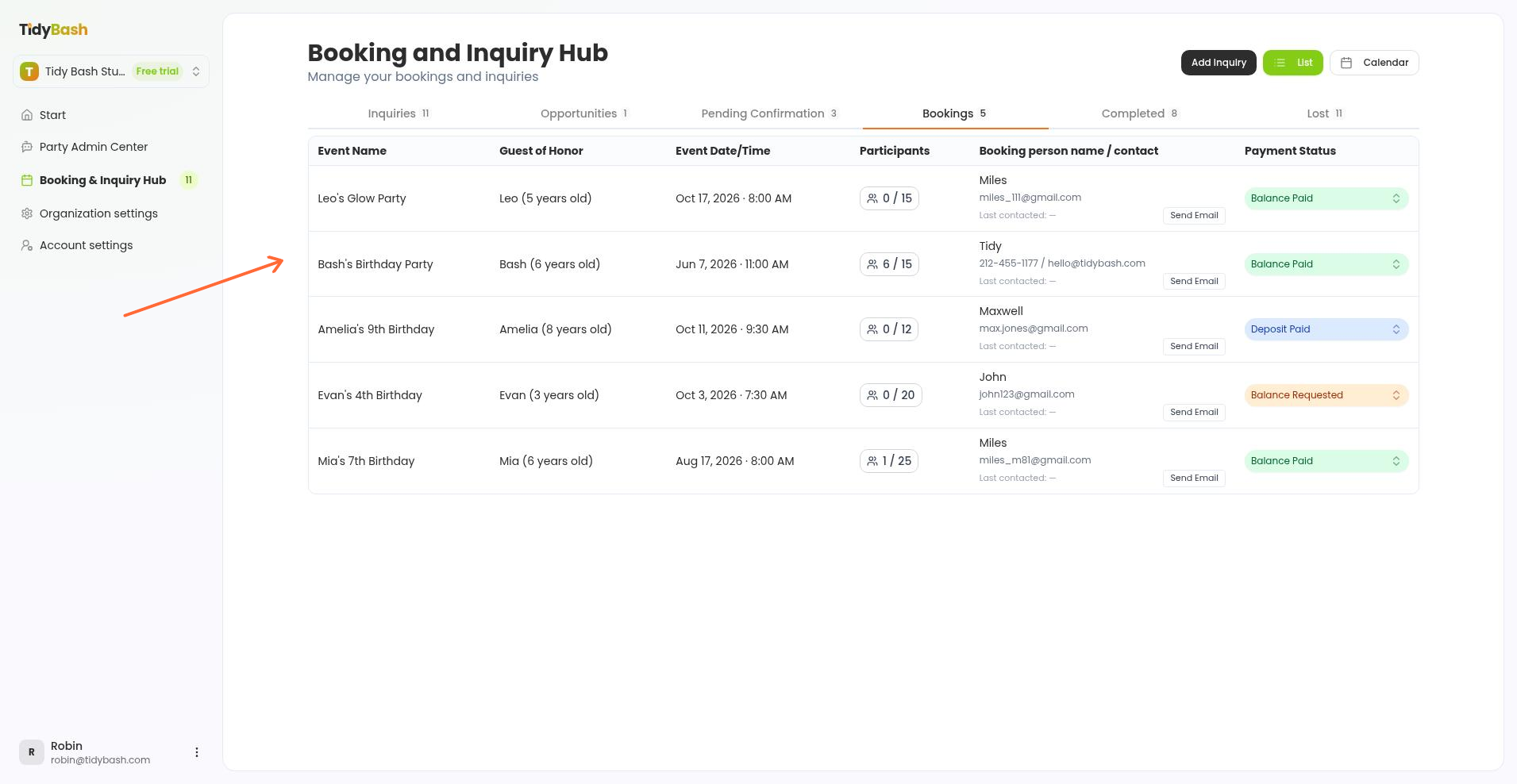
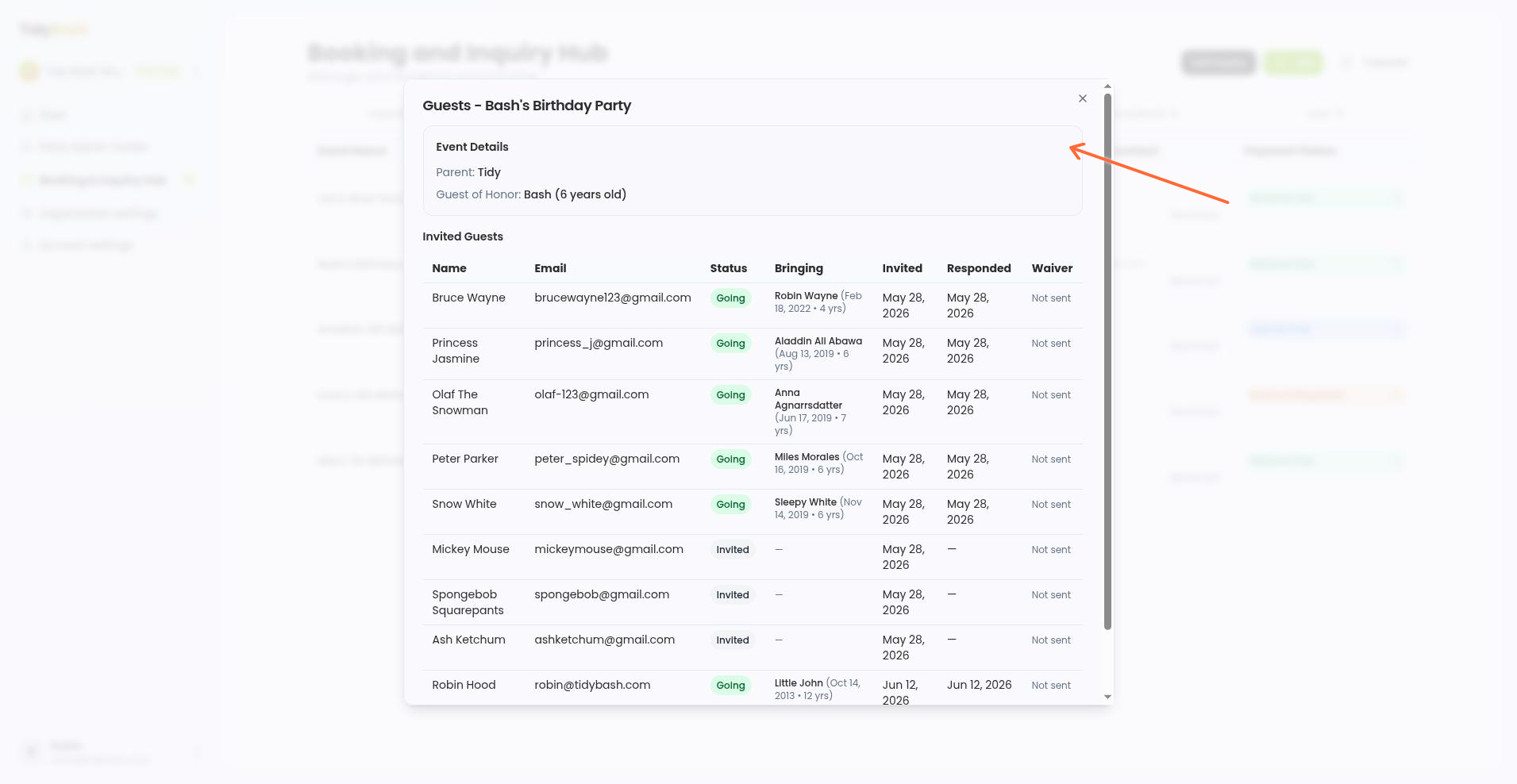
On the Bookings tab, find the party row. The participant count (for example 6 / 15) is the live headcount control.
Click that count to open the full guest list for the party.
Review each guest’s name, email, RSVP status, who they are bringing, invite and response timing, and waiver status (Signed, Pending, or Declined).
Download the guest list with Download guest list as CSV, or pull signed PDFs with Download all signed waivers when at least one guest has signed.
For pipeline tabs, calendar view, and the rest of the Hub workspace, see Using the Booking and Inquiry Hub.