

Setting Your Availability
Control which dates and times parents can book from Party Admin Center → Availability. Set lead time, available slots, and one-off exceptions so your public booking calendar matches how you actually run parties.
Availability works best after you have at least one location and one party package. Every slot and exception is tied to both.
Open Availability
Availability is a tab inside Party Admin Center, not a separate sidebar item.
Go to Party Admin Center.
Open the Availability tab.
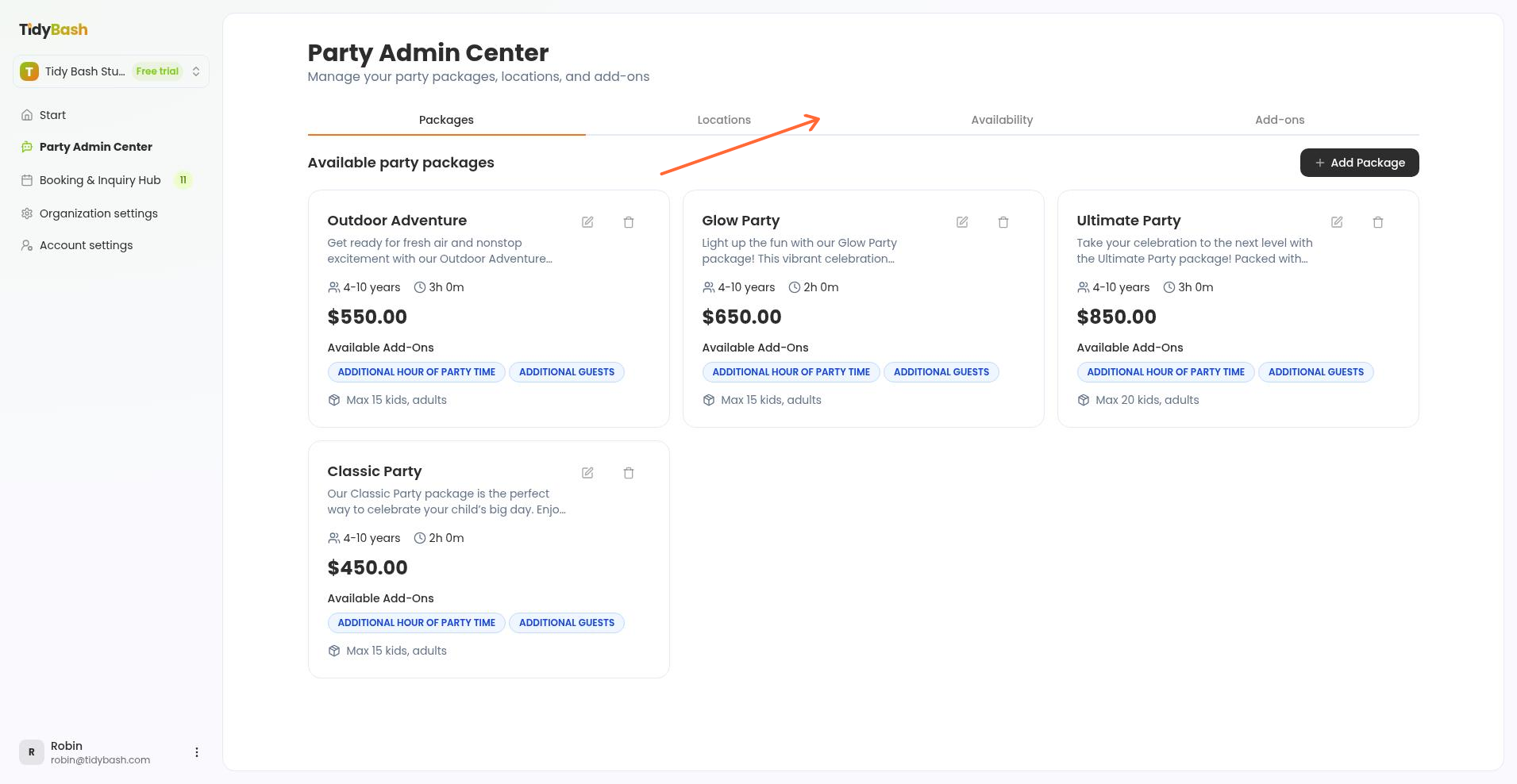
You will see three sections: Booking settings, Weekly open slots, and Schedule exceptions.
Set your booking lead time
Lead time blocks parents from booking too close to the party date.
In Booking settings at the top of the Availability tab, set Minimum booking lead time.
Enter the number of days. For example, 7 means parents cannot book a party within the next 7 days.
Click Save settings.
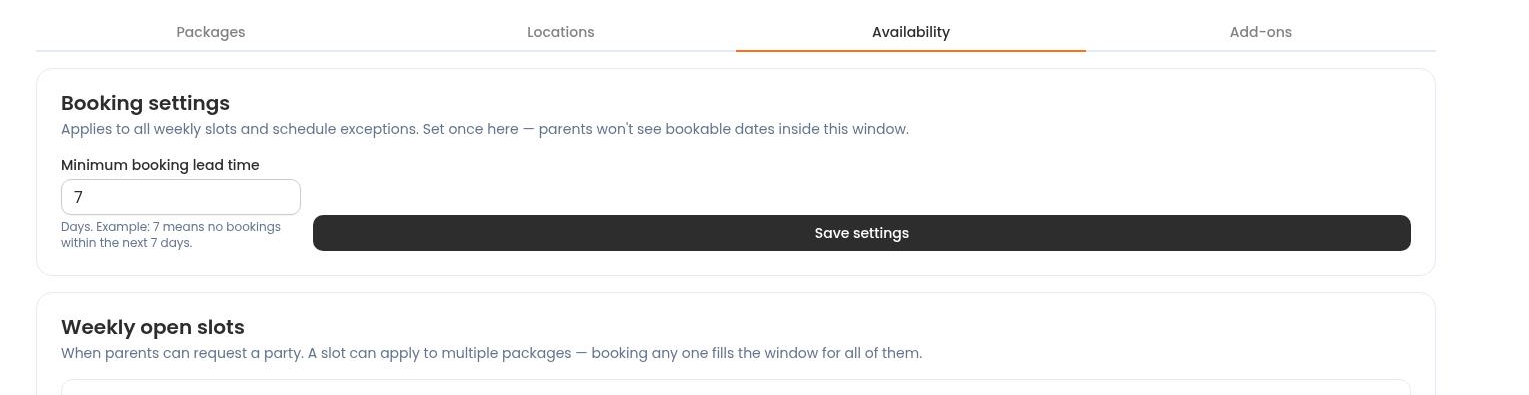
A successful save shows Booking settings saved.
Add your available slots
Available slots are the recurring windows when parents can request a party. This is the core of your availability.
In Weekly open slots, choose the Days the slot repeats on using the weekday buttons (Mon through Sun). Select every day that applies.
Set the From and To times for the window.
Optionally set Season from and Season to as the start and end dates for this available slot if it only runs for part of the year. Leave both blank for year-round.
Choose the Location.
Under Packages, select every package that should share this time window.
Click Add slot.
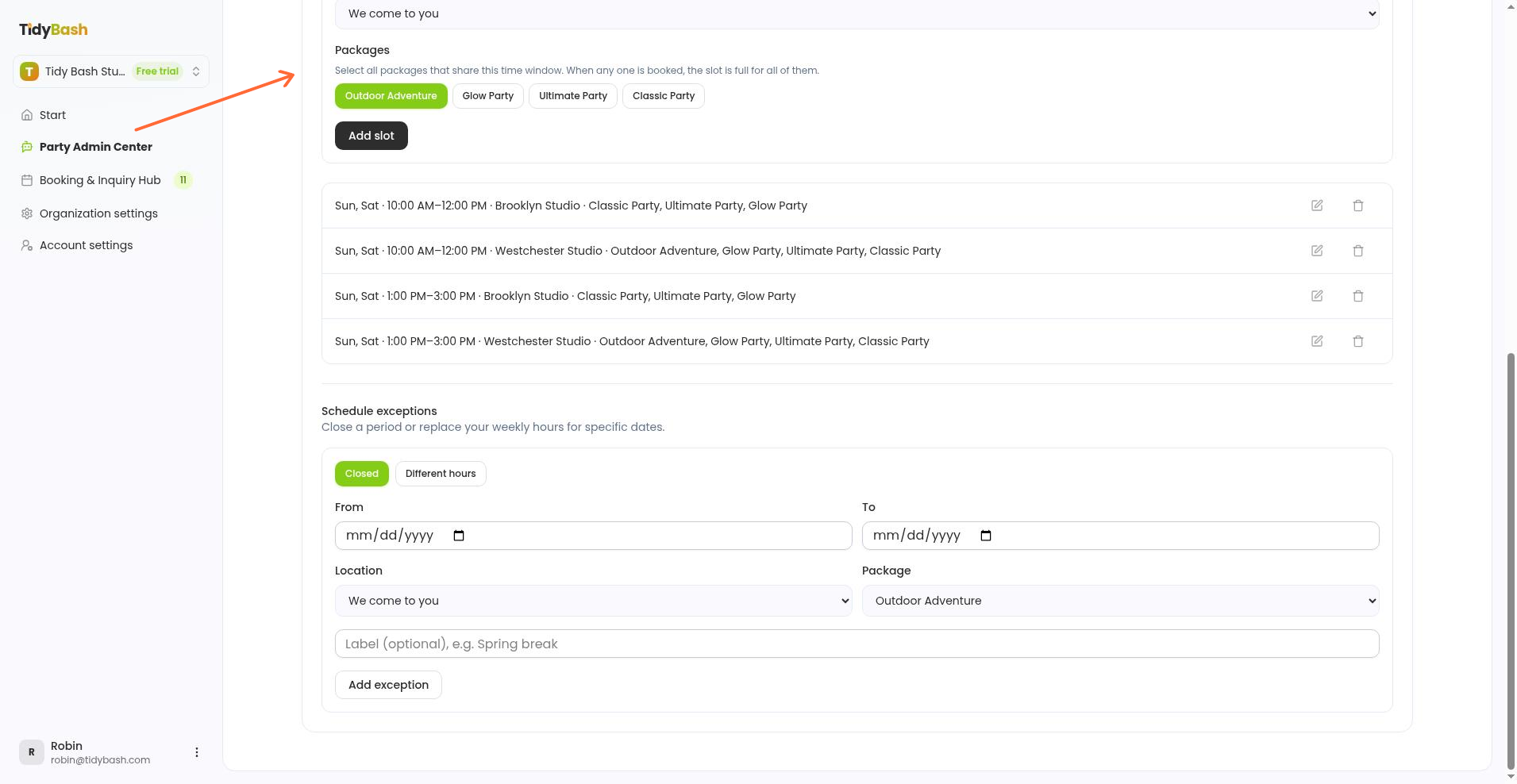
You need a location and at least one package, and at least one day, before the slot can save. Empty season dates mean the slot runs year-round.
Shared slots across packages
If you attach more than one package to the same slot, booking any one of them fills that window for all of them.
Example: you offer a Saturday 10:00–12:00 slot for both your Classic and Deluxe packages. A parent books Classic for that Saturday. The 10:00–12:00 window is then full for Deluxe as well. Use separate slots when two packages can run at the same time without blocking each other.
Add schedule exceptions
Exceptions override your weekly pattern for specific dates. Use Closed to make a range unavailable, or Different hours to replace normal hours for a period.
Scroll to Schedule exceptions.
Choose Closed or Different hours.
Set the date range with From and To.
Choose the Location and Package.
If you chose Different hours, also set the replacement Days, From time, and To time.
Optionally add a Label (optional), such as a holiday name or summer schedule note.
Click Add exception.
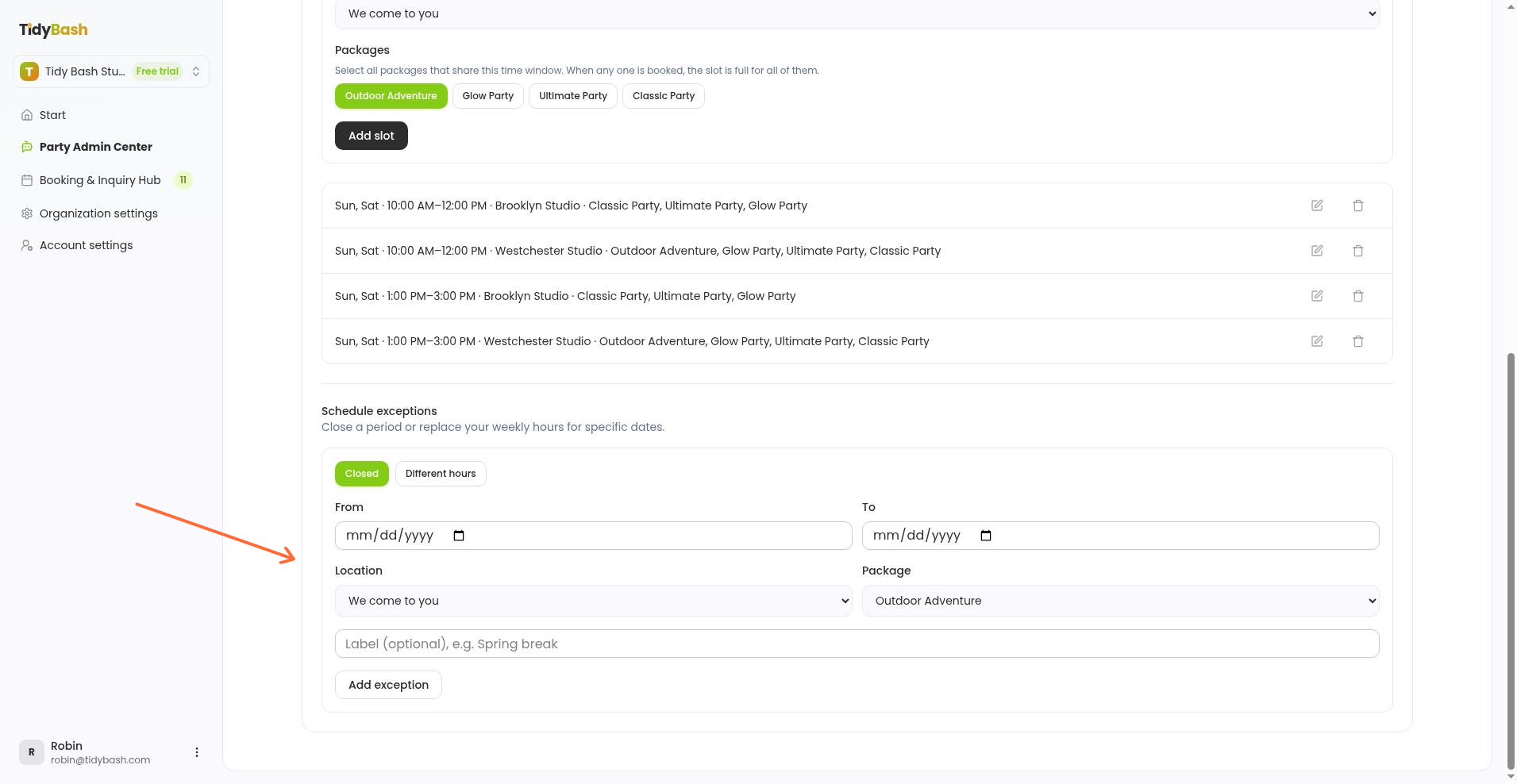
Use Closed for holidays, vacation, or any range you are not taking parties. Use Different hours when spring break or summer needs a different weekly pattern for a stretch of dates. You can also close or change hours for a single day or time when only select dates are unavailable.
What parents see
Your open slots appear on the booking calendar on your public page.
If you have not set availability for a date a parent wants, they are not turned away. They can still Request a date, which comes to you as an inquiry. When some slots are showing, parents also see Don't see your date? Request one.
Handle those requests in the Booking and Inquiry Hub the same way you handle any other inquiry.