

Collect Payments with Stripe
Connect your own Stripe account under Organization Settings → Customer payments so you can collect payments from parents in Tidybash.
Tidybash charges no platform fee on these payments. Standard Stripe card fees apply to your own Stripe account.
Connect Stripe
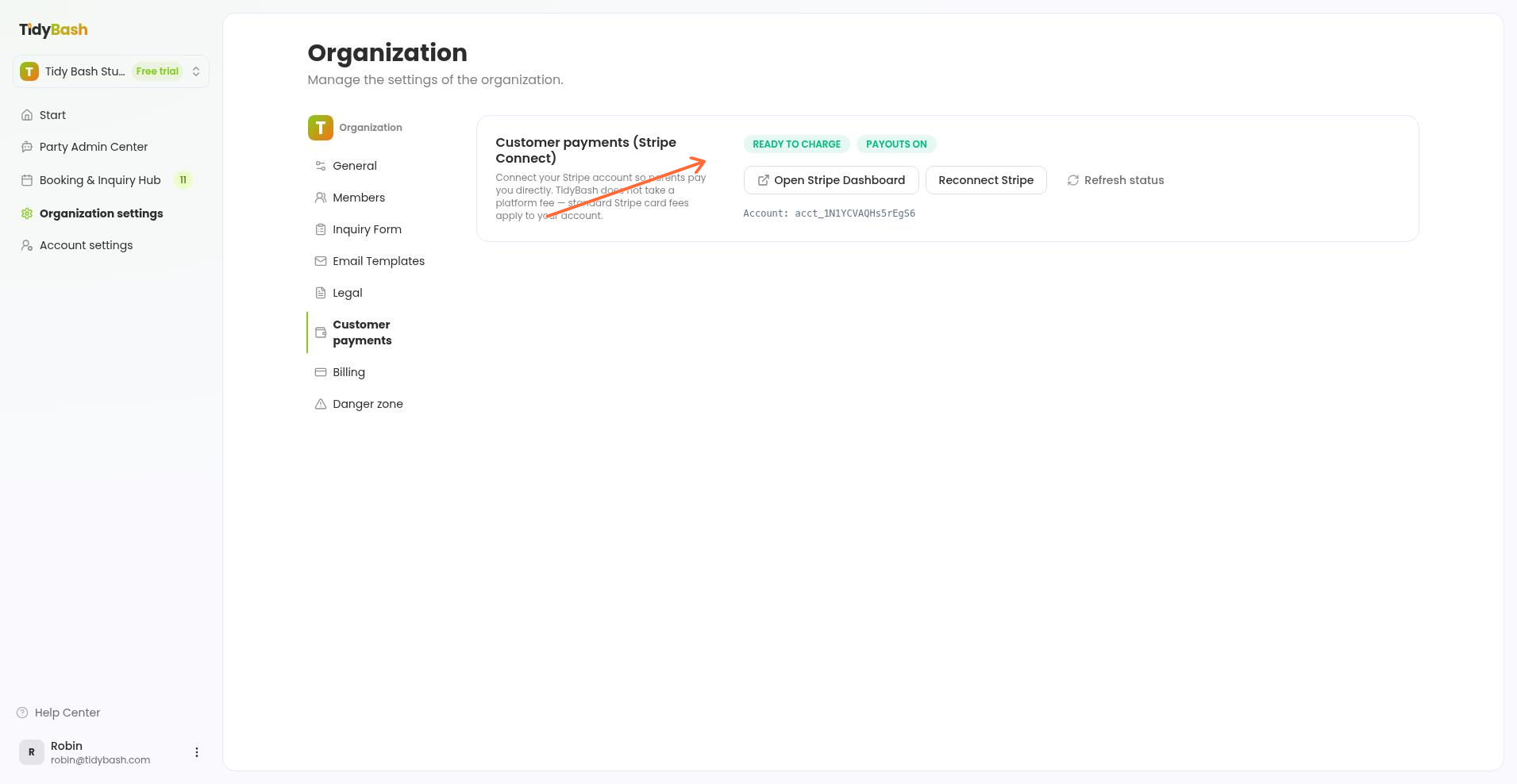
Start from Customer payments and finish Stripe’s onboarding until your status shows Ready to charge.
Open Organization Settings from the left sidebar.
Click Customer payments in the settings sidebar.
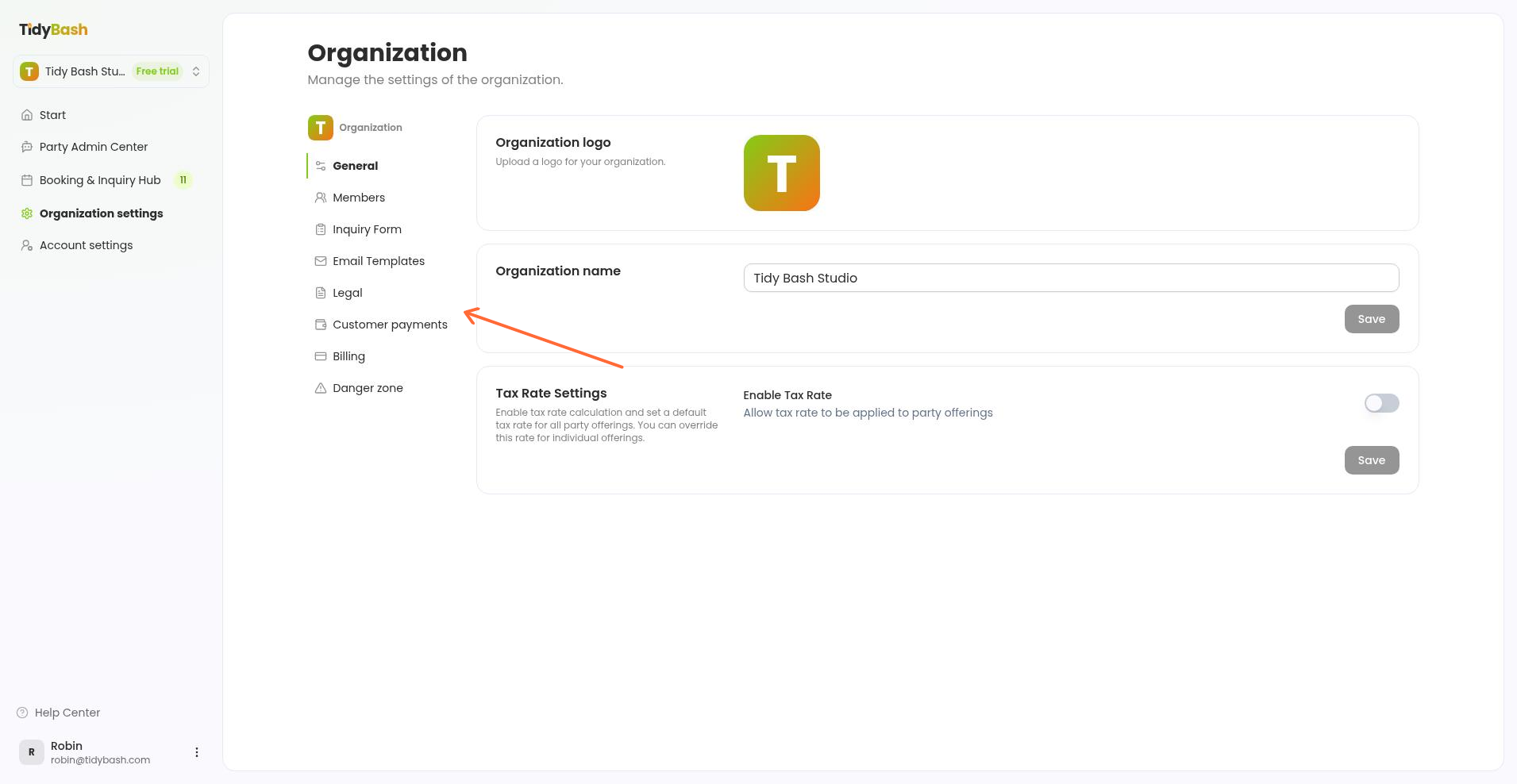
Click Connect with Stripe.
Sign in to your existing Stripe account, or create one if you don’t have it yet, then finish Stripe’s onboarding. For help with Stripe’s steps, see Stripe’s getting started guide.
Return to Customer payments and confirm the status shows Ready to charge.
You can take payments once the status is Ready to charge.
Connection statuses
Your Stripe connection status on Customer payments moves through three states:
Not connected - Stripe is not linked yet. Use Connect with Stripe to start.
Finish Stripe setup - you started onboarding but have not finished in Stripe. Complete the remaining Stripe steps, then come back.
Ready to charge - your account is connected and you can take payments.
Manage your Stripe connection
After you connect, use the actions on Customer payments to open Stripe or refresh the link.
Open Stripe Dashboard - manage payouts, receipts, and payment settings in your own Stripe account.
Reconnect Stripe - reconnect your Stripe account if the link needs to be set up again.
Refresh status - re-check the connection status in Tidybash after you finish steps in Stripe.
Payouts, receipts, and card fee details live in your Stripe account, not in Tidybash billing. Tidybash subscription billing is separate under Organization Settings → Billing.
Related articles
Managing Inquiries: From Lead to Booked Party - record deposits, balances, and payment status on a booking
Updating Your Subscription - manage your Tidybash plan and subscription billing