

Set Up and Share Your Booking Page
Your booking page is the public page parents use to see your packages and send an inquiry. Set it up under Organization Settings → Inquiry Form, add any custom questions you need, then share the link wherever parents already look for you.
Open Inquiry Form settings
Custom questions and share controls all live on the same settings page.
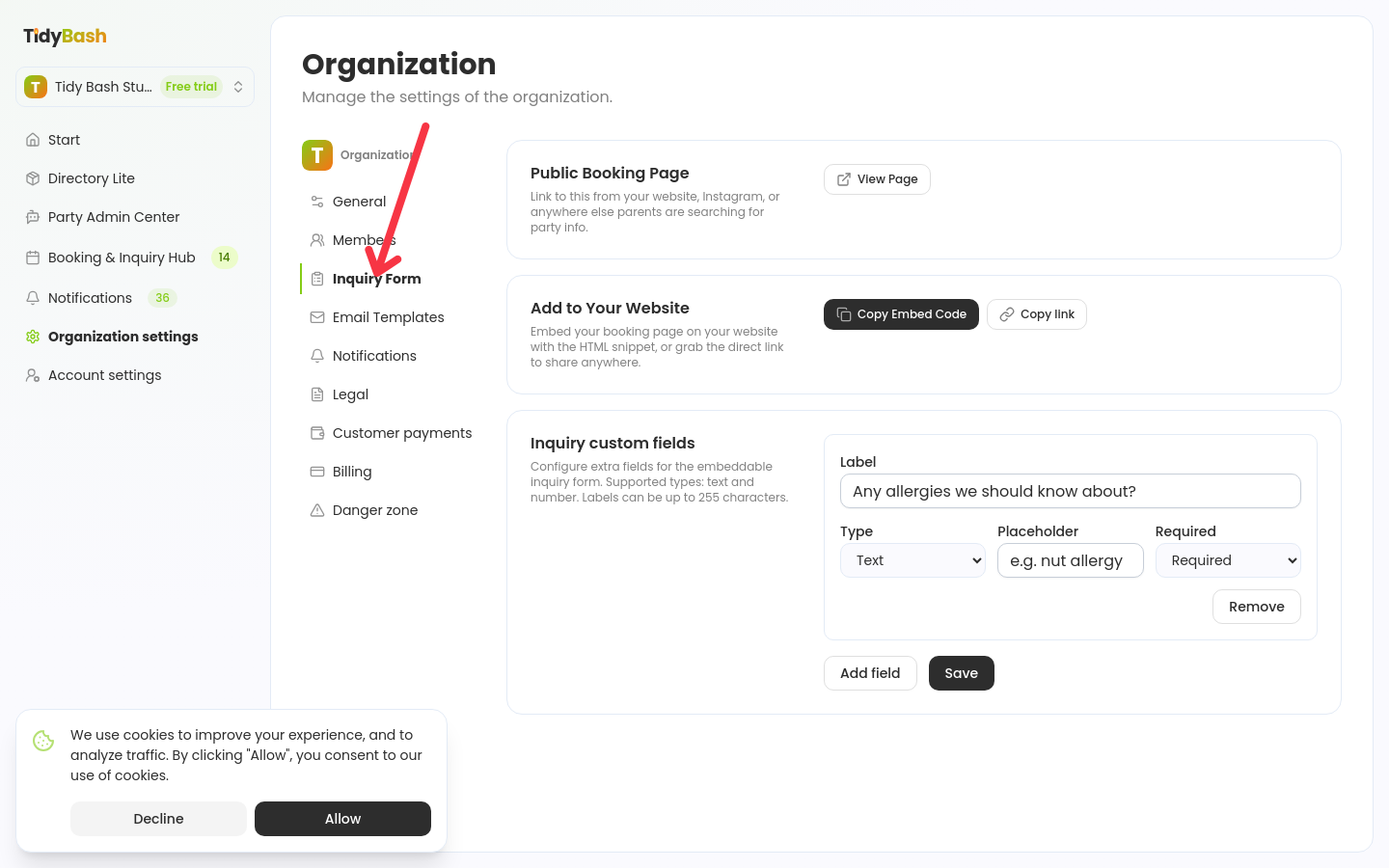
Open Organization Settings.
Click Inquiry Form in the settings sidebar.
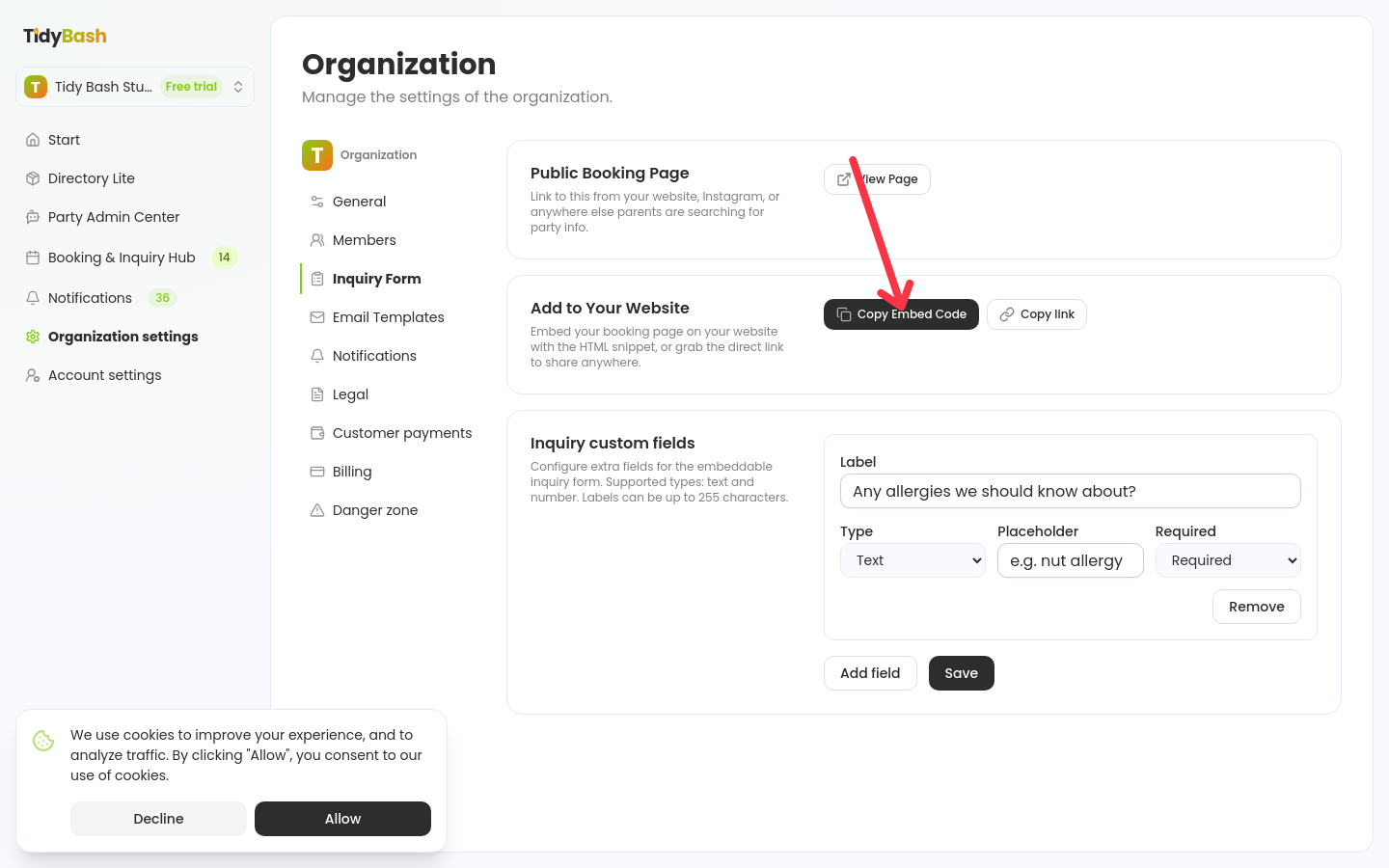
You’re on Inquiry Form Settings, with Public Booking Page, Add to Your Website, and Inquiry custom fields.
Add custom questions
Use Inquiry custom fields to collect details packages and add-ons don’t already capture, such as a party theme, dietary notes, or a song request.
On Inquiry Form Settings, go to Inquiry custom fields.
Click Add field.
Enter the Label parents will see (for example,
Party theme).Choose a Type: Text or Number.
Optional: add a Placeholder hint inside the field.
Turn on Required if parents must answer before they can submit.
Click Save.
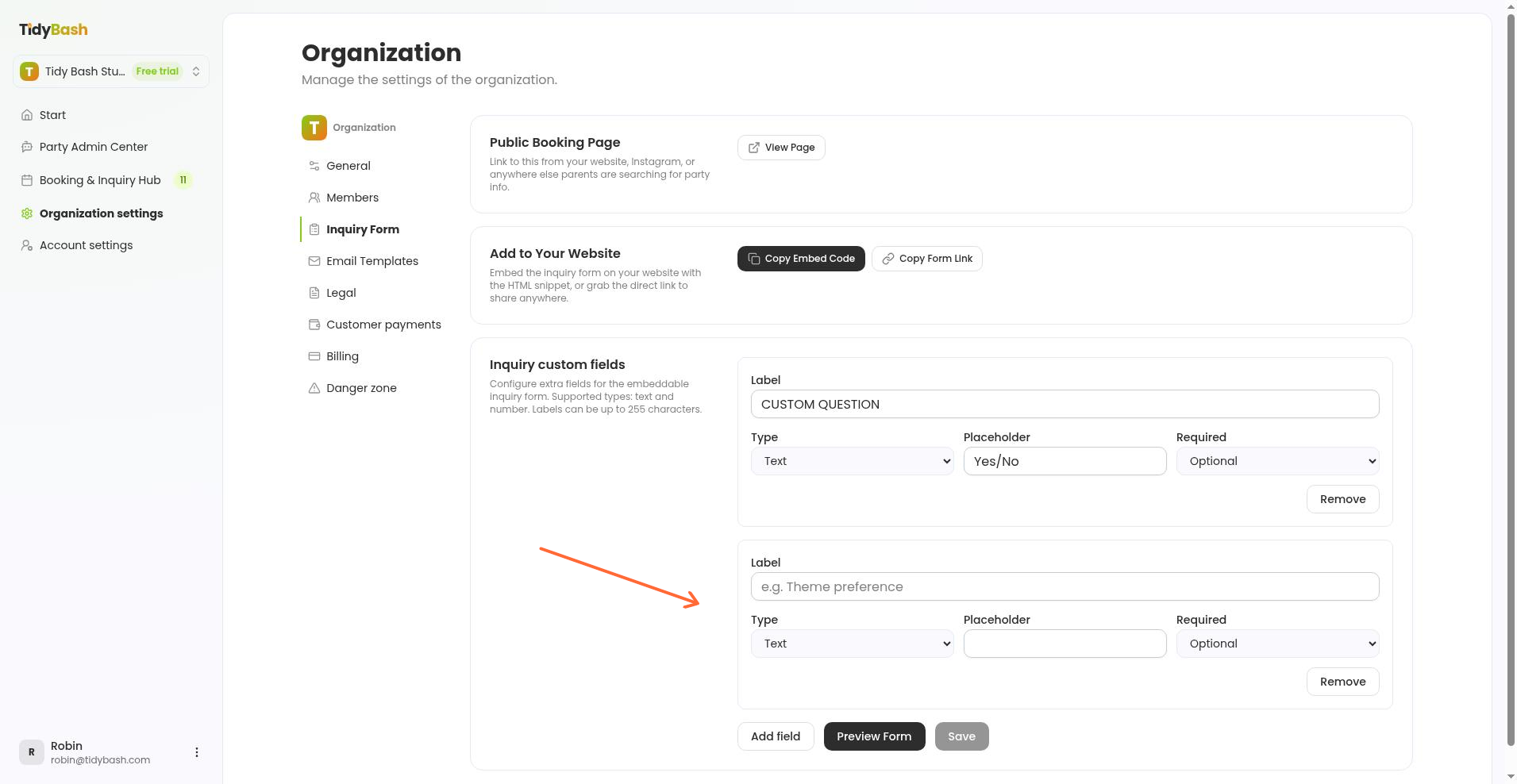
Each question is one row. Use Remove on a row you no longer need, then Save again.
Parents' answers come into the inquiry's Notes, one line per question (for example, Party theme - Unicorns). The booking parent can see Notes from their edit link, so keep staff-only details in Internal Notes.
Keep questions short and specific. Parents are already picking a package and add-ons; custom fields are for the extras those don’t cover.
Preview your booking page
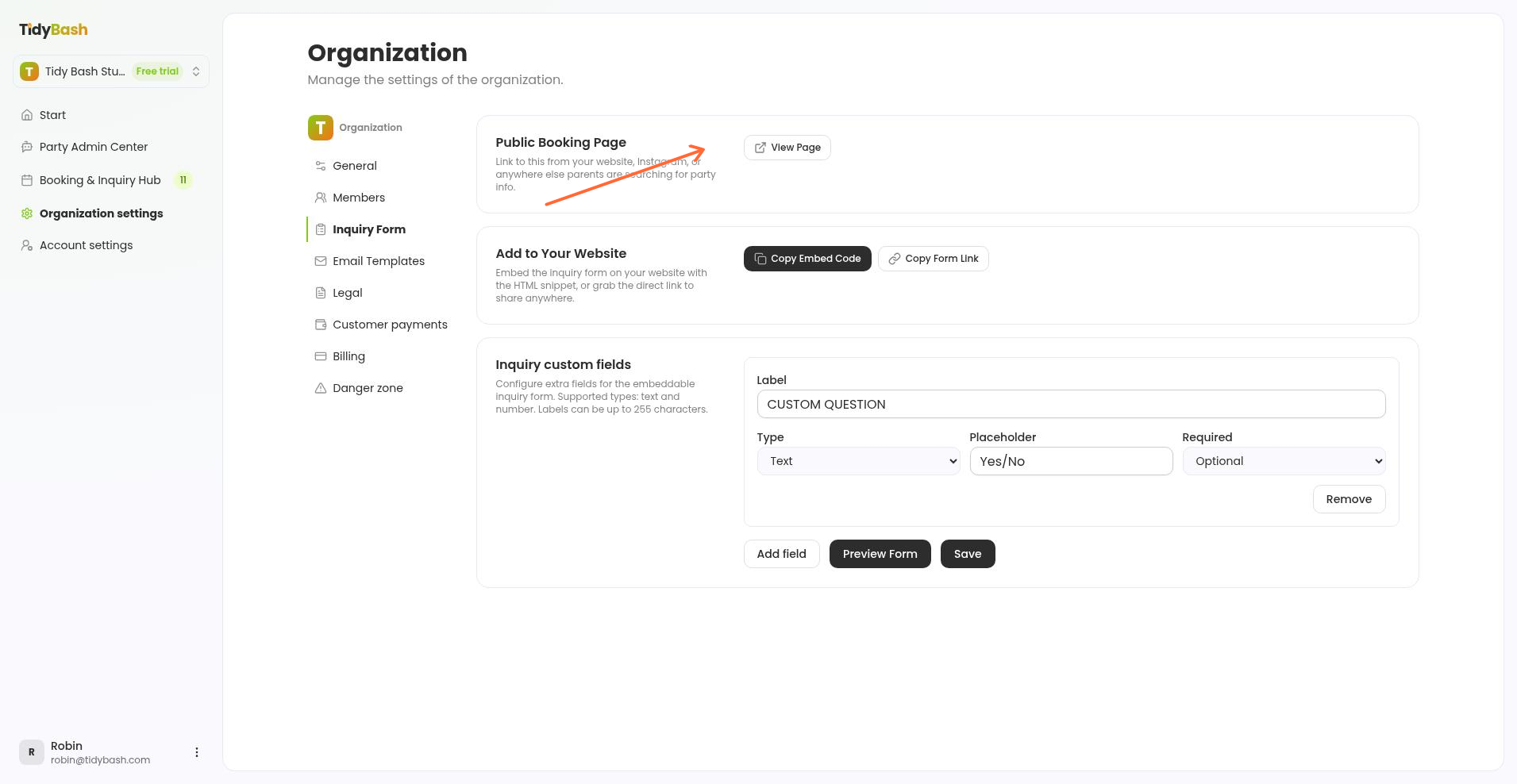
Before you share anything, open the live page and confirm packages, add-ons, and custom questions look right. In the Public Booking Page section, click View Page.
Your booking page opens in a new tab at a /parties/ address with your business name. Parents see your packages there and submit inquiries through it. Copy the URL from the browser address bar when you want to paste the link yourself.
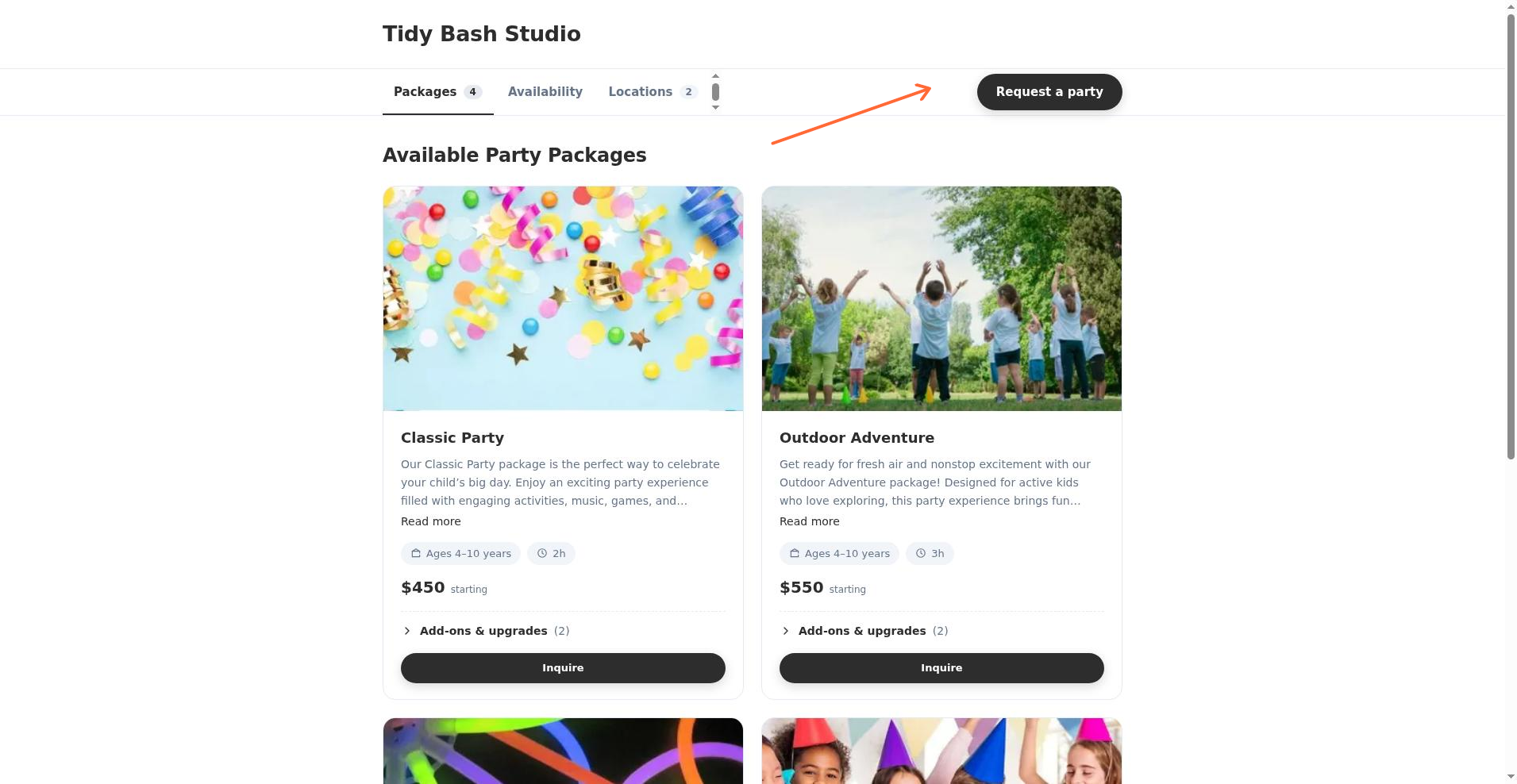
While it's open, read it the way a parent who has never been to your business would. Our list of the 28 questions parents ask most shows what to look for. Every question your page answers is an email you don't have to write.
Share your booking page
Put the booking page link wherever parents already look for you:
Behind a “Book a Party” button on your website
In your Instagram or Facebook bio
In a message to a parent who reached out by phone or email
Use Copy link in Add to Your Website to copy your booking page URL (the /parties/ address) so you can paste it anywhere.
Embed the booking page on your website
Copy Embed Code gives you a snippet that puts the full booking wizard on your own website, so parents can send an inquiry without leaving your page.
Open Organization Settings.
Click Inquiry Form in the settings sidebar.
Scroll to the Add to Your Website section.
Click Copy Embed Code. You see
Embed code copied to clipboardwhen it works.Paste the snippet into your website's HTML where the booking form should appear.
The snippet is a complete iframe pointing at your booking page, plus a small script that auto-resizes the frame as parents move through the wizard and scrolls it into view. It is responsive: 100% width, at least 320 pixels tall, and it grows or shrinks to fit each step, so it works on mobile.
The embedded form is the full booking wizard, starting on the Your details step. After a parent submits, the embed shows Request sent! with a Start another inquiry button, so multiple parents can book from the same page.
What happens next
When a parent submits, the inquiry lands in your Booking and Inquiry Hub on the Inquiries tab. A New Inquiries badge appears in the sidebar so you know to follow up.