

Setting Up Locations
Add the places your parties happen in Party Admin Center → Locations, so parents see accurate venue options on your booking page and event pages.
A studio with one main room can add that room as a fixed location, then turn on We come to you for at-home parties. Parents pick which option fits when they book.
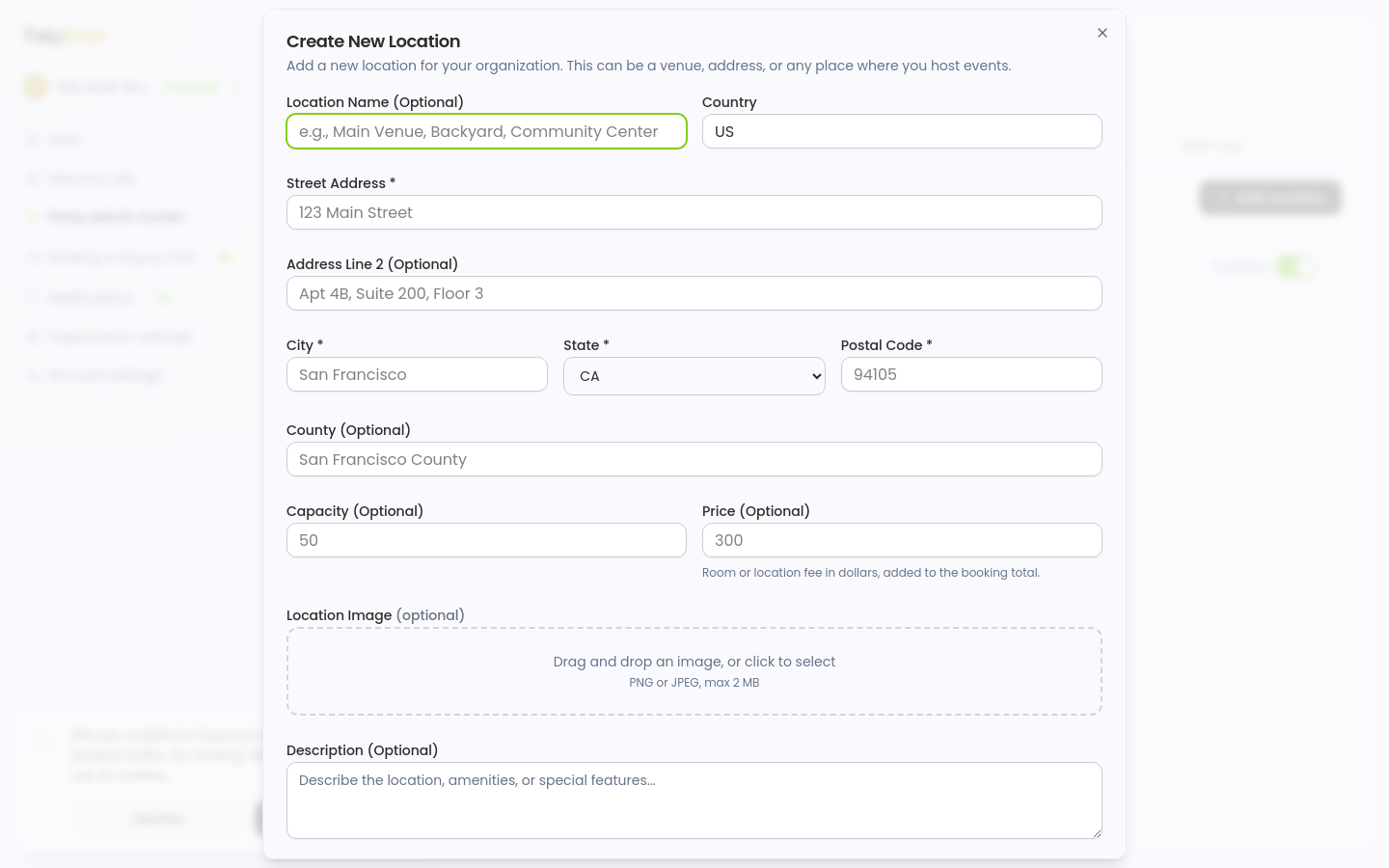
Open Locations
Locations live under Party Admin Center.
Go to Party Admin Center.
Open the Locations tab.
Click Add Location.
The Create New Location form opens.
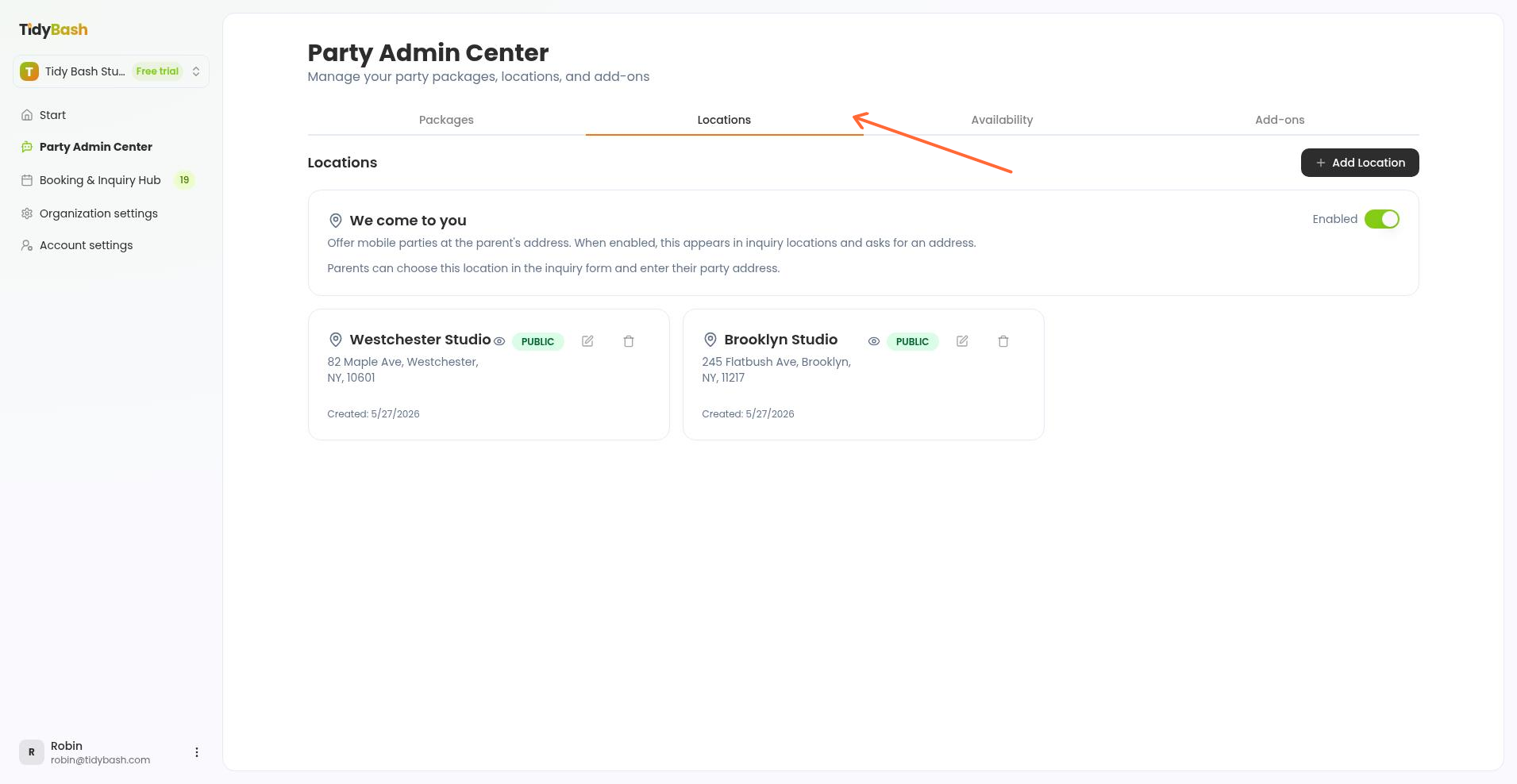
Enter the address parents should see, then add the optional details that help parents picture the space.
Optionally enter a Location Name (for example, Main Studio or Party Room A).
Enter the required address fields: Street Address, City, State, and Postal Code.
Optionally fill Address Line 2, County, and Notes.
Optionally enter Capacity (Optional), the maximum number of guests for the space.
Optionally enter Price (Optional). This is the room or location fee in dollars, added to the booking total.
Optionally fill Description (Optional) with details like amenities or special features.
Optionally add a Location Image (optional) by dragging and dropping an image, or clicking to select one. PNG or JPEG only, up to 2 MB. A bigger file shows the message "Image must be under 2 MB".
Picked the wrong file? Click Remove preview to drop it. On a location you already saved, use Remove image.
When the address is complete enough for the event page to display it, the event page shows a live weather forecast for that spot.
Hide a private location
Check This is a private location (not visible to customers) when the address should stay off your public booking page.
Use this for a home address, a backup space, or any venue you track internally but do not want listed for parents. Private locations are filtered out of customer-facing party pages.
Save the location
Save the form to add the location to your account.
After you save, parents can select it when they book or inquire (when you offer more than one place, or when mobile parties are enabled). Location cards on the Locations tab show the name, address, capacity, and whether the location is public or private.
Offer We come to you
If you travel or run off-site parties, enable the mobile option on the same Locations tab instead of creating a fixed address for every house visit.
Stay on Party Admin Center → Locations.
Find the We come to you panel.
Turn the toggle on so the status shows Enabled.
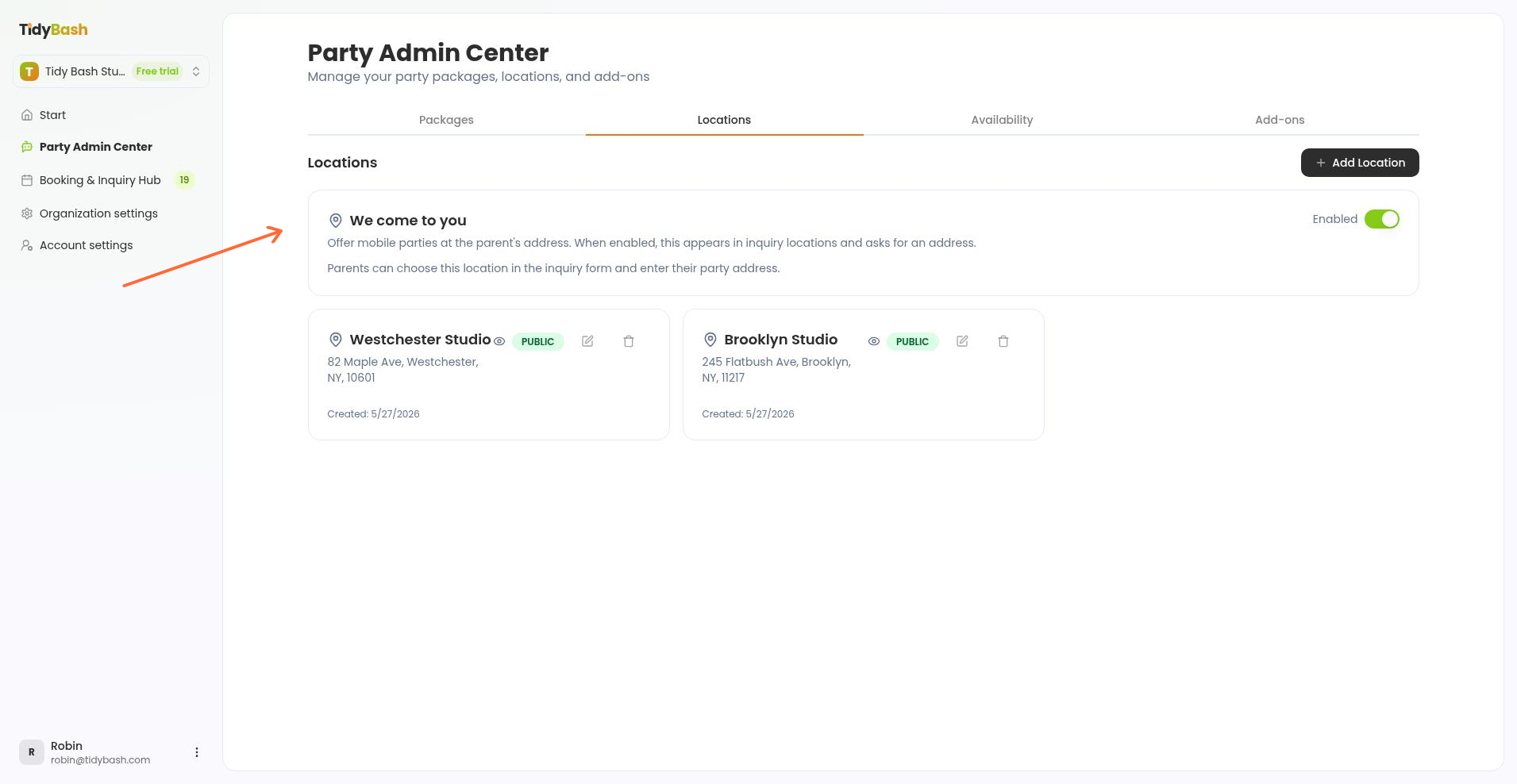
Parents then see We Come to You as a location choice. When they pick it, they are asked Where should we come? The address is optional at booking, so they can leave it blank and share the venue later once it is locked in.
You can keep a main studio location and enable We come to you at the same time. Parents choose the fixed venue or a mobile party when they book.
What parents see on your booking page
Everything you add here appears for parents on your public booking page.
The Locations tab on your booking page shows each non-private fixed location with its image (when you added one), its description in an expandable block, and its formatted address under the name.
Capacity shows as "Up to X guests" using the number you entered.
The price appears next to the location name when it is set above 0. Cents are kept: 65.99 shows as $65.99, and a whole number like 65 shows as $65.
The same details appear on the location cards inside the booking wizard.
Private locations do not appear on the public page, and We Come to You shows in the wizard without a fixed address.