

Setting Your Tax Rate
Set a default tax rate only if you charge tax on parties. If you don’t, skip this. Tax stays off until you turn it on.
Once enabled, Tidybash applies your rate in the price breakdown on inquiries and shows a tax line to parents on the event page.
Open Tax Rate Settings
Tax lives under Organization Settings → General.
Open Organization Settings.
Select General in the settings sidebar.
Scroll to Tax Rate Settings.
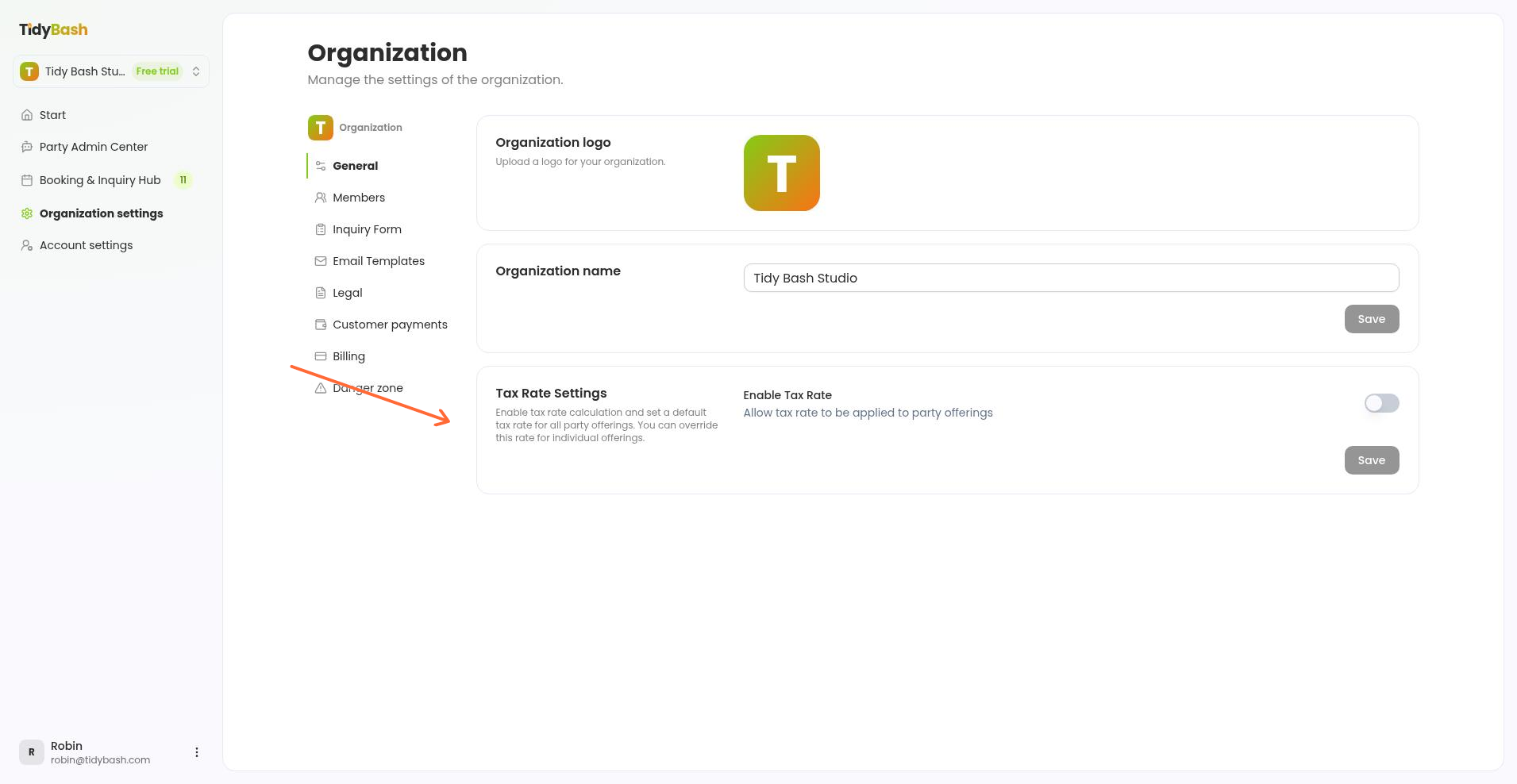
Turn on tax and enter your rate
Enable the toggle, enter the percentage, then save.
Turn on Enable Tax Rate. The rate field appears only after tax is on.
Enter your rate in Default Tax Rate (%) as a percentage (for example, 8.5 for 8.5%). Allowed values are 0 to 100.
Click Save.
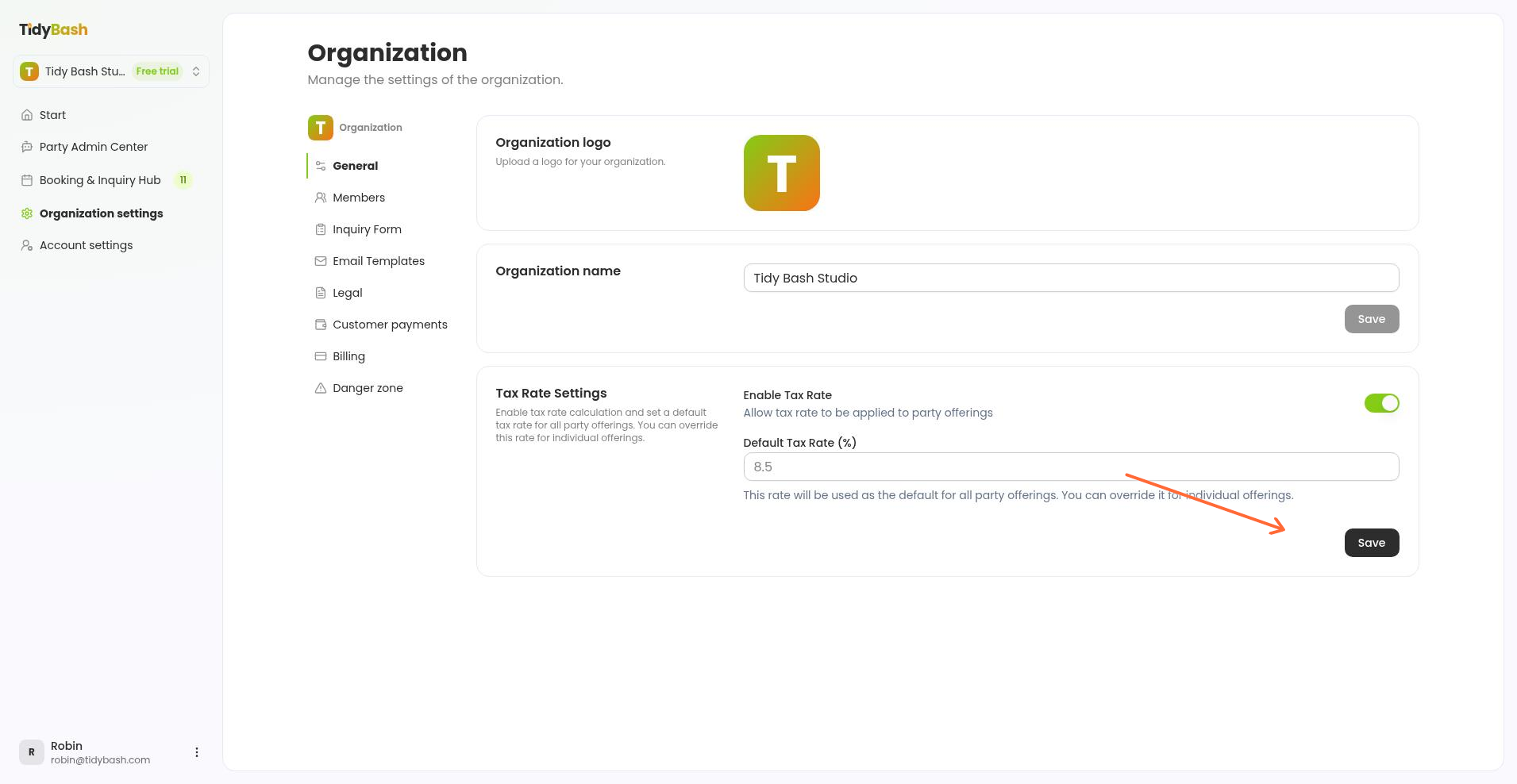
Tidybash applies that rate to every party. You can't set a different rate on a single party.
Where tax shows up
After you save, tax is included in the price breakdown when you build a party's package and add-ons. Parents see a tax line in the total on their event page when a rate greater than 0 is set.
For the full inquiry pricing flow, see Managing Inquiries: From Lead to Booked Party.