

Getting Paid: Deposits, Balances, and Refunds
Collect a deposit, balance, or custom amount from the payment card in the inquiry modal, or track payment status from the Hub list. You can send a Stripe payment link or record money you already collected outside Tidybash.
To use Stripe payment links, connect Stripe first in Collect Payments with Stripe.
Open Payment Tracking on the booking
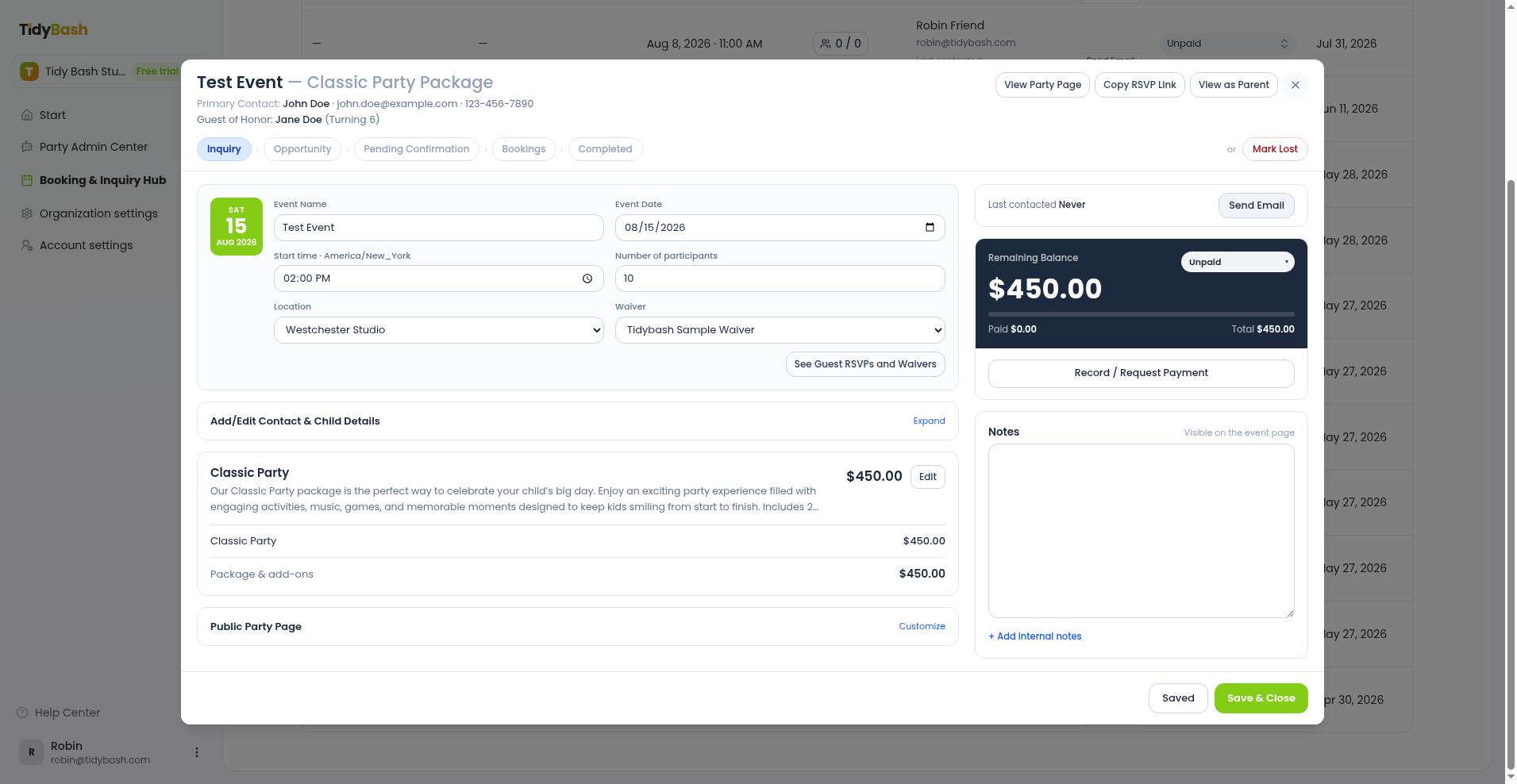
Payments live on the individual inquiry, in the payment card on the right side of the inquiry modal.
Open Booking & Inquiry Hub from the left sidebar.
Stay on List, then click the inquiry or booking row to open it.
Find the payment card on the right side. It shows Remaining Balance (or No package selected yet when no package is chosen), the amount paid, the total, and Payment Status.
Send a Stripe payment link
Use Record / Request Payment when Stripe is connected and you want the parent to pay by card. Create the link first, then either copy it yourself or send it from Tidybash in an email.
Stripe must be set up first. See Collect Payments with Stripe.
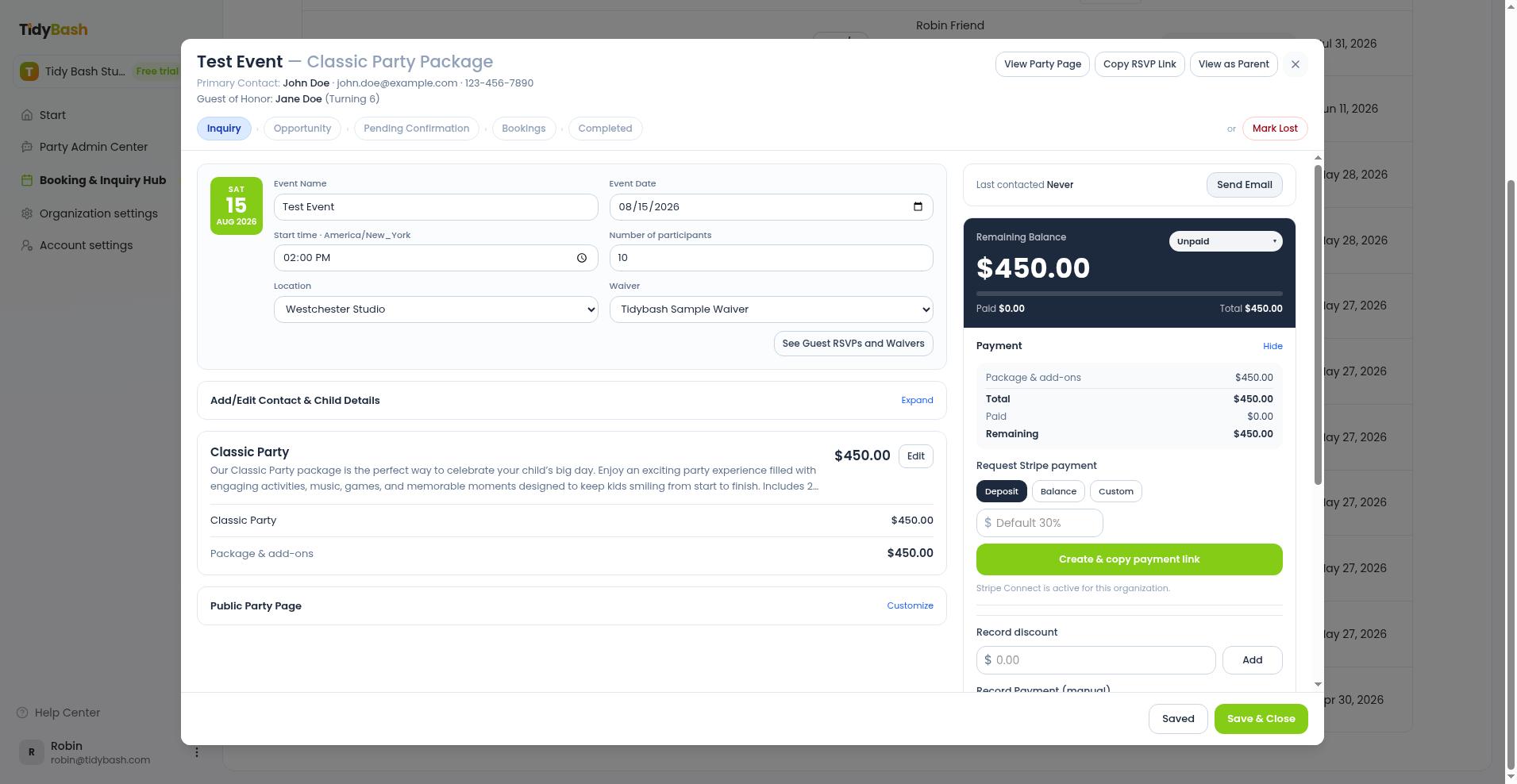
In the payment card, click Record / Request Payment (or Record Payment when Stripe is not enabled).
Choose the amount type: deposit, balance, or custom.
For deposit, the amount field defaults to 30%; for custom, enter the amount in the field.
Click Create & copy payment link.
When the link is created, Tidybash shows Payment link created — copy and send to the parent. To send it yourself, paste the copied link into your own message to the parent.
Copy link and Send payment request then appear in the payment card, next to the link's amount. The link stays valid until the parent pays or you create a new one. To get back to it later, click Record / Request Payment again.
After you request a deposit or balance, set Payment Status to Deposit Requested or Balance Requested so the Hub list matches what you sent.
Send the link from Tidybash
Add the payment link to an email template once, then send from the inquiry row. Make sure you've created the payment link before you send the email.
Set up the template:
Open Organization Settings > Email Templates.
Click Stripe Payment Link. That inserts the placeholder
[paymentLink]wherever the cursor is in the template.
Send it on a booking:
Create the payment link in the payment card (steps above).
In the payment card, click Record / Request Payment, then Send payment request (or click Send Email on the inquiry row). Choose a template that includes
[paymentLink]and send it.
Tidybash substitutes the most recent pending Stripe payment link for that booking into [paymentLink]. In the email the parent receives, the Stripe checkout URL renders as a Pay Now button.
The payment link has to exist before the email is sent. If a template uses [paymentLink] and the booking has no pending link, Tidybash blocks the send and shows: "This template uses [paymentLink], but this inquiry has no pending payment link. Generate one from the payment section first."
Record a manual payment
Use Record Payment (manual) when you already collected money outside Tidybash.
In the payment card, click Record / Request Payment and scroll to Record Payment (manual).
Enter the amount received, then click Add.
Confirm Paid and Remaining update in the card. Payment Status updates to Paid automatically when the remaining balance reaches $0.
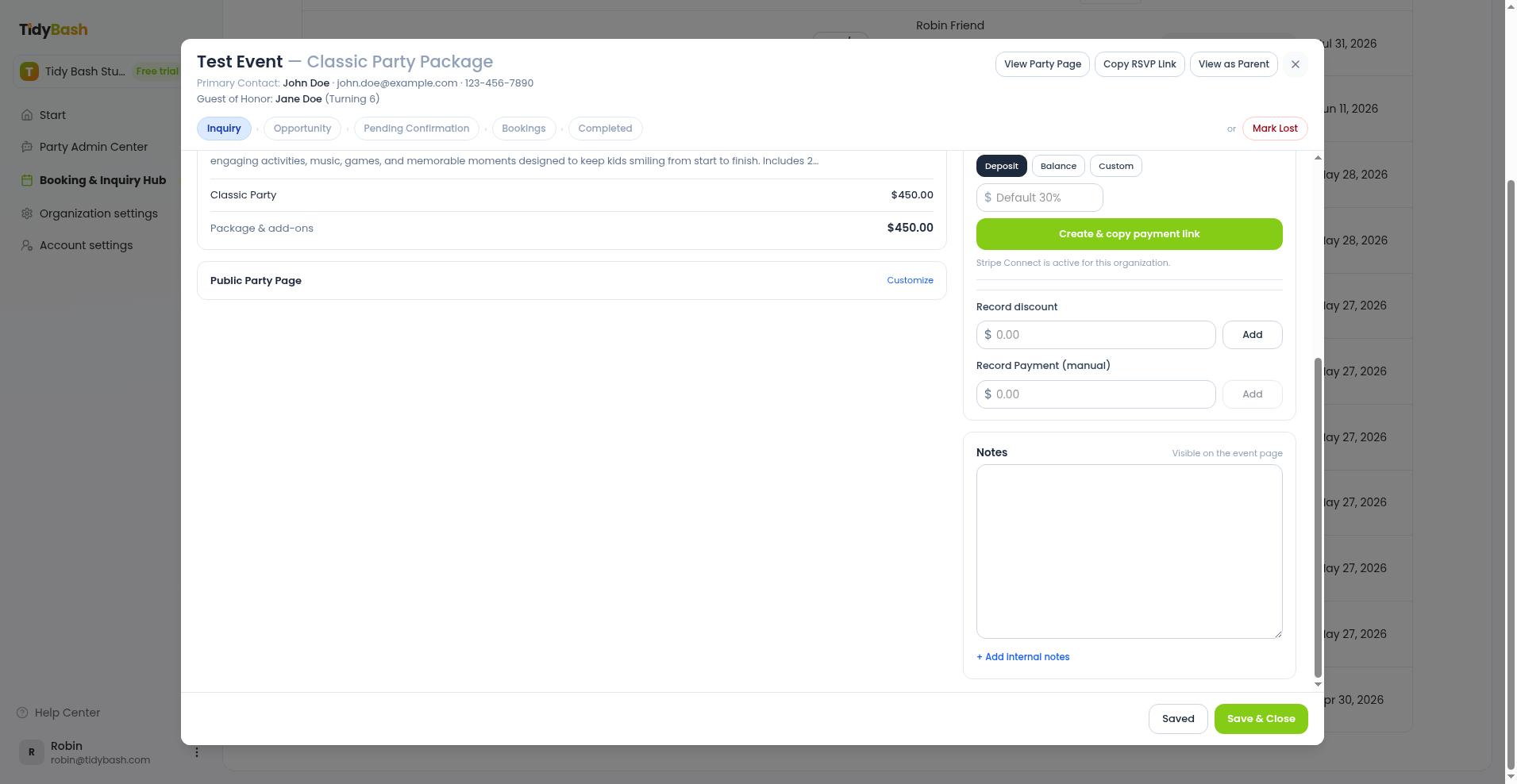
Manual entries only track what you collected. The parent is not charged through Tidybash.
Payment status and marking paid
Payment Status updates to Paid automatically when a recorded payment clears the balance. You can still change it yourself in the payment card or on the Hub list row.
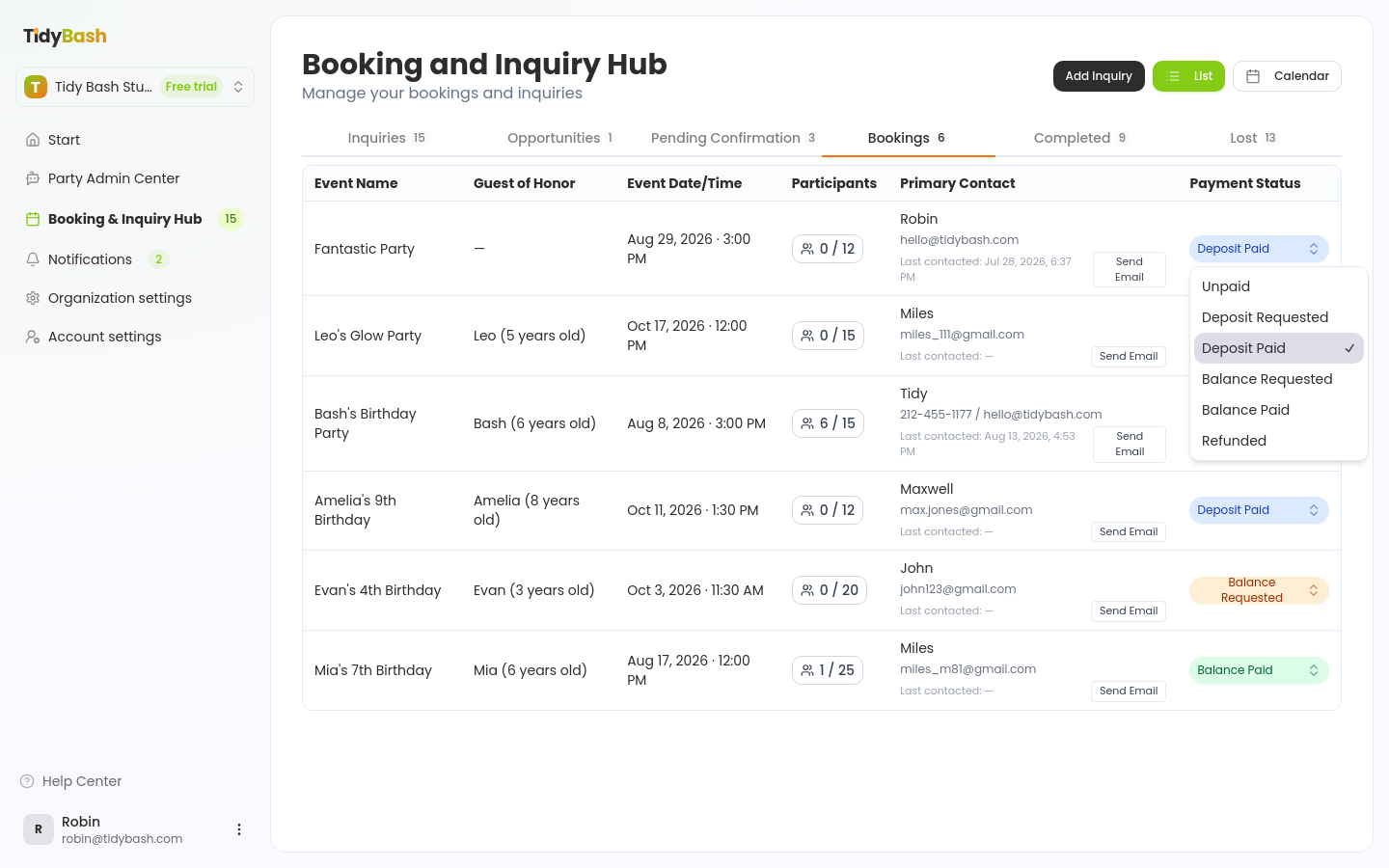
Change Payment Status from the Hub list row dropdown, or from the status pill at the top of the payment card in the inquiry modal. Options:
Unpaid
Deposit Requested
Deposit Paid
Balance Requested
Balance Paid
Refunded
Refund a Stripe payment
Refund card payments you collected through Stripe from the same booking's payment card.
Open the booking and go to the payment card.
Find the Stripe payment you need to reverse under Payments.
Start the refund and confirm when asked to refund this Stripe payment to the parent.
A successful refund shows that the refund was processed; a failure shows that the refund failed. Update Payment Status to Refunded when that matches the booking.
Related articles
Collect Payments with Stripe — connect Stripe before sending payment links
Using the Booking and Inquiry Hub — list, calendar, and row payment status
Managing Inquiries: From Lead to Booked Party — deposit timing on the path to a confirmed booking