
How Notifications Work
Notifications tell you when a parent sends an inquiry, walks away partway through one, or pays, and when guests RSVP, sign waivers, or get invited. The inquiry and payment alerts also come by email, and you choose who gets them.
The Notifications page
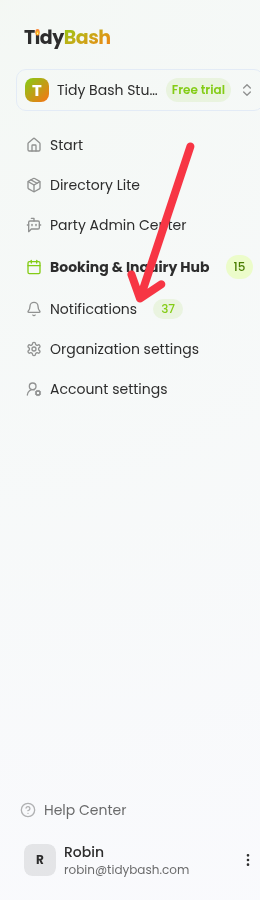
Click Notifications in the left sidebar. The badge on it shows how many notifications you haven't read yet.
The page lists everything for your organization, newest first. Filter the list with the chips across the top: All, Unread, Inquiries, Abandoned, Payments, RSVPs, Waivers, and Invites.
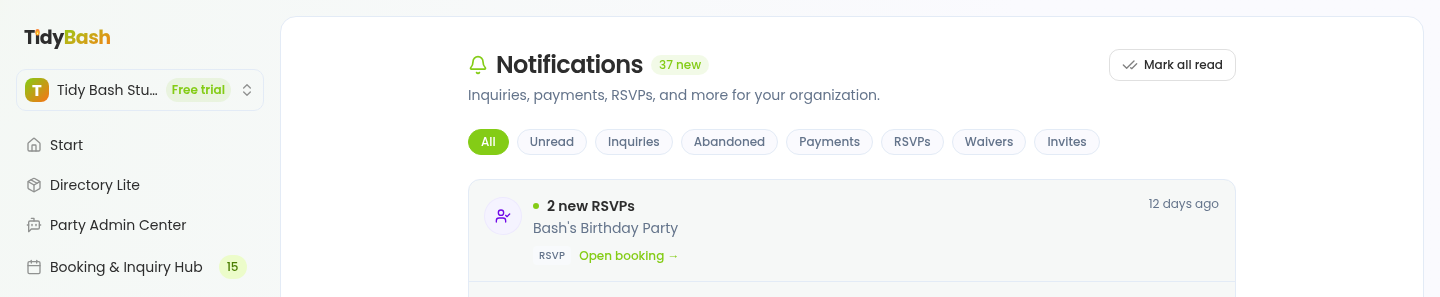
Click Mark all read to clear the unread count when you've caught up. Each notification links straight to the party it's about, and opening one marks it read.
What creates a notification
These trigger a notification:
New inquiry. A parent submits a full inquiry from your booking page. In-app and email.
Abandoned inquiry. A parent enters their contact details but doesn't finish within an hour. In-app and email.
Payment received. A parent pays a Stripe payment link (deposit, balance, or custom amount). In-app and email.
RSVPs, Waivers, and Invites sent. Grouped per party, so one entry covers a whole batch. In-app only, no email.
Inquiries you add yourself with Add Inquiry, like a phone or walk-in booking, don't create a notification.
Notification email settings
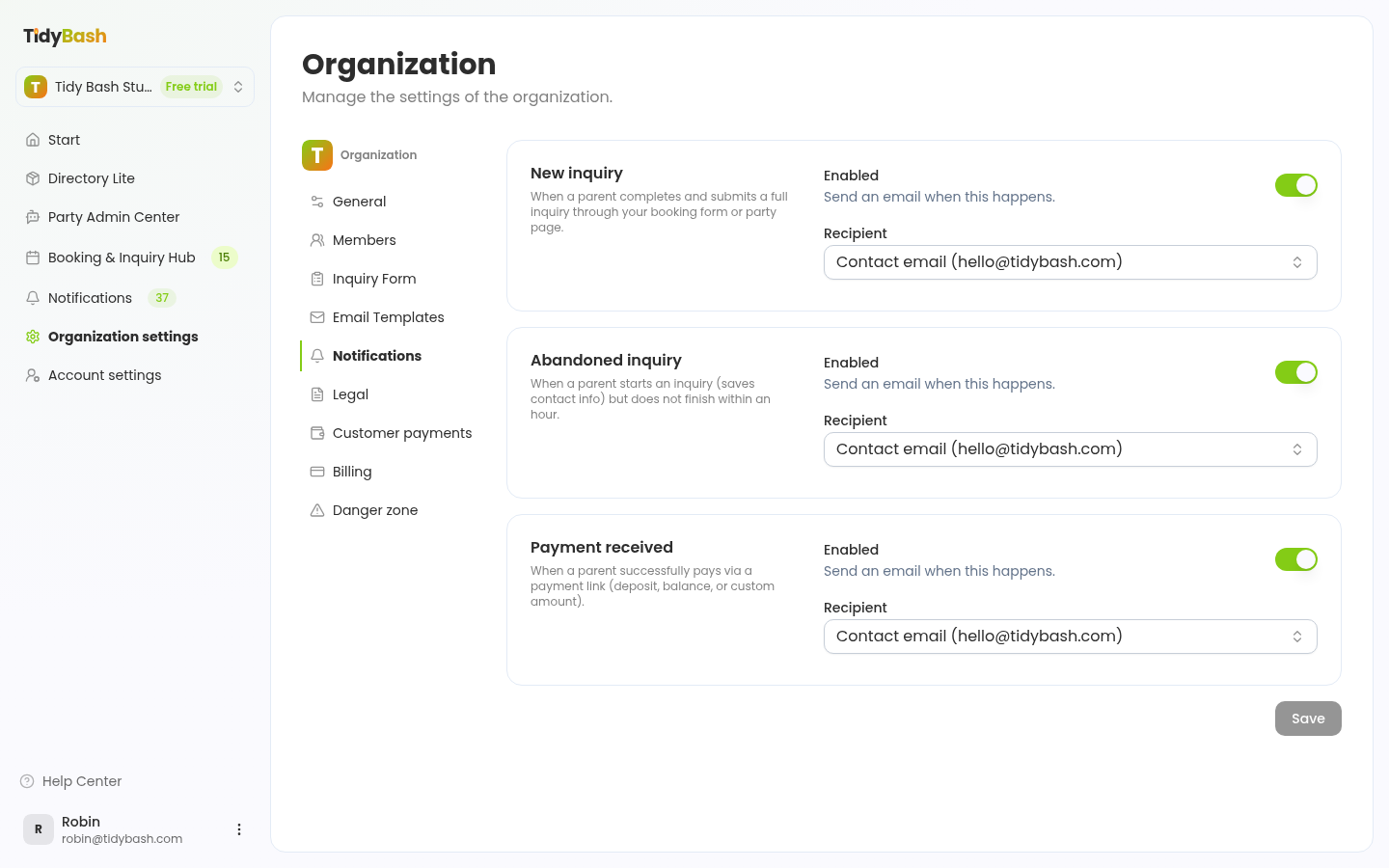
Admins control the three email alerts under Organization settings → Notifications. All three are on by default and go to your Contact email, the address parents and Tidybash use to reach your business (see Setting Your Contact Email).
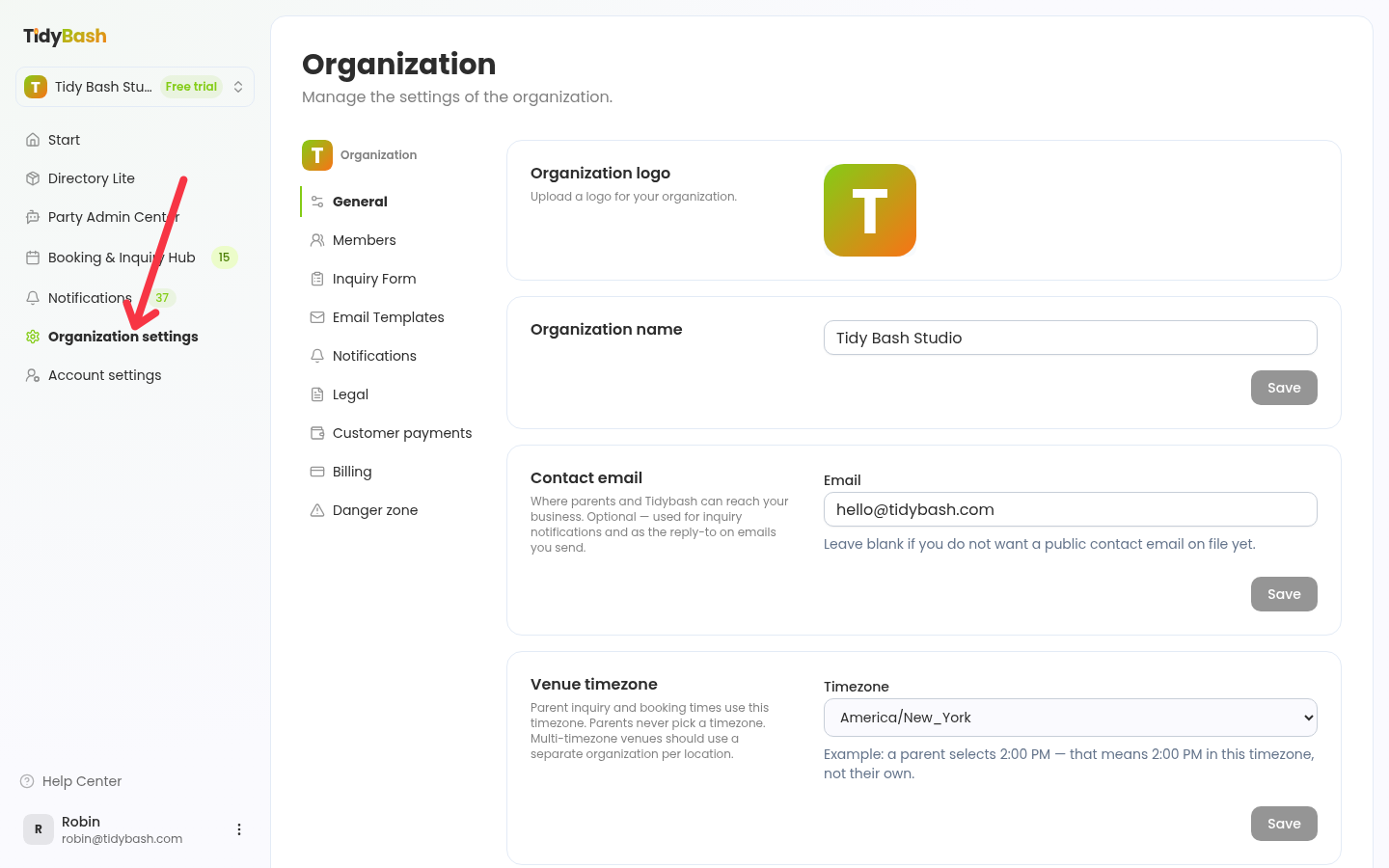
Click Organization settings in the left sidebar.
Click Notifications in the settings sidebar.
For each email (New inquiry, Abandoned inquiry, Payment received), use the Enabled switch to turn the email on or off.
Under Recipient, choose your Contact email or a team member.
Click Save.